 UpParser
How to Extract Invoice Line Items into Excel (PDF, Scans & Multi-Page Tables)
Extract invoice line items into Excel from PDFs, scans, and multi-page tables. Use UpParser to define columns, review quantities and tax, and check exported rows.
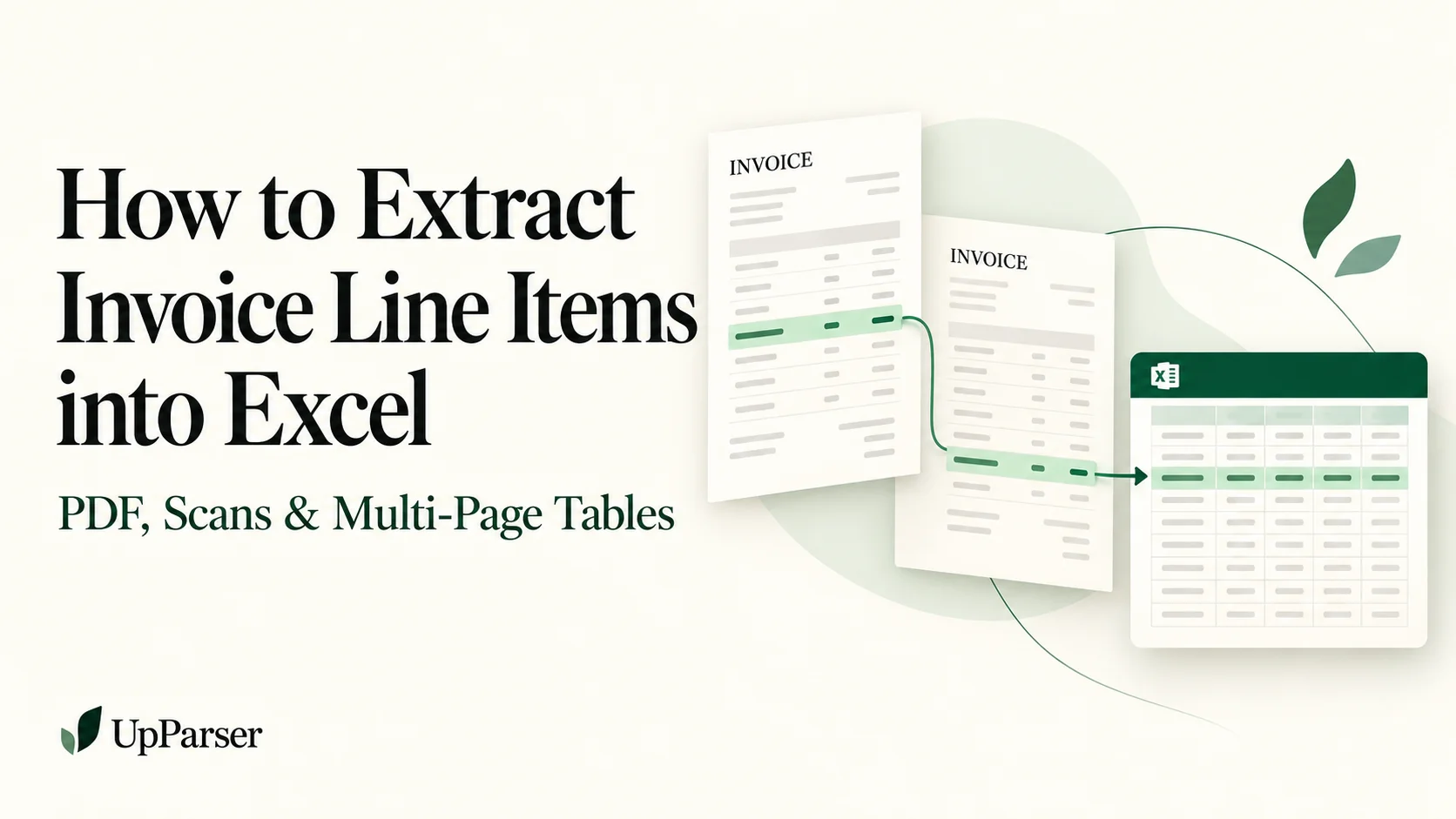
Quick answer: To extract invoice line items into Excel, capture each product or service as a separate row, with columns for description, quantity, unit, unit price, and line amount. Include item-level tax where the invoice provides it. Review the extracted rows against the original document, check page breaks and totals, then export to Excel.
The difficult part is keeping each description attached to the correct numbers. A spreadsheet can look organized while containing a missing item, a shifted unit price, or a subtotal mistaken for a product.
This tutorial explains how to choose an extraction method, then use UpParser for invoice line item extraction: defining fields, reviewing product details, handling tables that continue across pages, and preparing the results for Excel.
Which Method Fits Your Invoices?
| Method | Best for | Main limitation |
|---|---|---|
| Excel Get Data > From PDF (Power Query) | Native PDFs with one consistent table layout, repeated regularly | Works with readable PDF text rather than image-only scans; connector availability varies by Excel version and platform; layout changes may require query cleanup |
| PDF converters (e.g., Acrobat export) | One-off, simple tables | Review the resulting structure: wrapped descriptions, summary rows, and field meanings may need cleanup |
| Plain-text OCR | Getting text out of a scan | Text output alone does not establish structured invoice fields or item relationships |
| Purpose-built invoice extraction (UpParser) | Mixed supplier layouts, scans, wrapped descriptions, multi-page tables | Still needs human review; test on your own suppliers first |
Microsoft documents a PDF connector for Power Query, including options for multi-page tables and cleanup of multi-line rows. Availability varies by host and version. Its Excel for Mac import-source guide does not list PDF among the supported import sources; check your current Data menu before following PDF-import instructions.
If every invoice comes from one supplier with the same digital layout, Excel's built-in import may be enough. Once layouts vary or documents are scanned, field-level extraction and review matter more than the import step.
Invoice Fields and Line Items Are Different
Invoice-level fields describe the whole document: supplier, invoice number, invoice date, currency, subtotal, and grand total.
Line items describe individual products or services. An invoice containing twelve products should normally produce twelve item rows, even when descriptions wrap across several printed lines or the table continues onto another page.
| Data type | Examples | Recommended structure |
|---|---|---|
| Invoice header | Supplier, invoice number, invoice date | One record per invoice |
| Line items | Description, quantity, unit price, line amount | One row per product or service |
| Invoice totals | Subtotal, total tax, grand total | Separate invoice-level fields |
Keep a document identifier associated with the item table. This lets you trace each row back to its invoice when combining data from several files.
Step 1: Check the PDF or Photo
Include all pages and make sure small amounts are readable. Select and copy a few words from the PDF if you want to check for a text layer. A scan can also have selectable OCR text, so compare copied numbers with what the page actually shows.
Step 2: Choose the Product Columns
Start with these columns:
| Column | What to check |
|---|---|
| Description | Keep the whole product or service description |
| Quantity and unit | Keep 2 PCS separate from 2 BOX |
| Unit price | Check whether it applies per piece, pack, or another unit |
| Line amount | Confirm whether it includes tax |
| Tax, if shown per item | Leave blank if only an invoice-level tax total is available |
| Invoice reference | Keep each product linked to its invoice |
Add product codes if you use them. Keep codes as text so leading zeros remain.
Step 3: Open UpParser
Open the Invoice Parser. Start with the preset, or click Adjust instructions and enter:
Get one row per product with its full description, quantity, unit, unit price, and amount. Include item tax only if it is shown. Keep the invoice reference with the product list. Do not include page headers, subtotals, or the grand total as products.
For a table spanning pages, add: “Check all pages and look for descriptions continuing onto the next page.” These instructions describe the result you want; check the actual output.
Step 4: Upload the Complete Invoice
Click Upload and extract, select the file, and sign in if asked. Check the current limits on the upload screen. Keep the full invoice in one PDF where possible.
Step 5: Check Each Product Row
Compare the result beside the original. Make sure each description has the right quantity, price, and amount.
A description wrapping onto three printed lines can still be one product. A price per pack may not multiply directly by a quantity counted in individual pieces. Check the source before changing an amount.
Step 6: Check Tax
If the invoice shows tax for each product, compare those values. If it shows only a total tax amount, keep that at invoice level rather than guessing tax for each row.
Keep any later Excel tax calculation separate from the values read from the document.
Step 7: Check Page Breaks
At each page boundary, check:
- The last product on the earlier page is present.
- The next page's first product is present.
- Continued descriptions belong to the right row.
- Repeated headings and “Carried forward” totals are not treated as products.
The same product may appear twice legitimately. Check the original before deleting a repeated description. Test cross-page results on your own layouts.
Step 8: Correct and Check
Use Edit data to fix a value. If something is missing, use AI adjustment and say, for example, “Include the full description from the next page.” Check the preview before accepting it.
Compare line amounts with the subtotal, then allow for tax, delivery, discounts, and credits when checking the grand total. Matching arithmetic is a useful check, not proof that every row is correct.
Step 9: Download Excel
Click Download, choose Excel, and confirm. Open the workbook and check that every product is on its own row and has an invoice reference.
Keep the invoice's grand total in the main invoice record. Do not add it repeatedly across product rows.
Example: Two Products from One Invoice
This fictional example is not an UpParser export. It assumes prices before tax and a stated 10% item tax.
| Invoice reference | Product | Quantity | Unit price | Before tax | Tax | Including tax |
|---|---|---|---|---|---|---|
| DOC-001 | Blue pens | 10 PCS | USD 2.00 | USD 20.00 | USD 2.00 | USD 22.00 |
| DOC-001 | Paper packs | 2 PACK | USD 5.00 | USD 10.00 | USD 1.00 | USD 11.00 |
The amounts including tax add to USD 33.00. Store that invoice total once. Repeating USD 33.00 on both rows and adding it would incorrectly give USD 66.00.
Clean Up and Check in Excel
You do not need code to get started:
- Keep invoice references and product codes as text.
- Separate quantities from units and amounts from currency labels before calculations.
- Count products and compare the list with the source.
- Check item totals against the invoice, allowing for its discounts, freight, tax, and rounding.
- Add a Review status column and mark uncertain rows for checking.
For accounting imports, follow the receiving app's template. See QuickBooks and Xero import steps.
Where the Data Goes Next
Depending on your process, reviewed line items may feed:
- Accounting or bookkeeping import.
- PO matching, comparing invoice quantity and price with purchase order and delivery records.
- Cost analysis by product, project, or cost centre.
Check the target system's required columns and formats before export. The examples above describe downstream uses of reviewed exports; they do not imply a direct connection to a particular accounting system.
Common Invoice Line Item Extraction Problems
| Problem | What to check |
|---|---|
| One description becomes two products | Wrapped text and item boundaries |
| Quantity belongs to the next product | Alignment between descriptions and numeric columns |
| Unit price does not explain the line amount | Price basis, discounts, tax treatment, and row pairing |
| Item tax is missing | Whether the source provides item-level tax |
| A subtotal appears as a product | Boundaries between items and summary rows |
| The last item on a page disappears | Page breaks and continuation text |
| The same product appears twice | Whether the original invoice contains two legitimate rows |
| Rows lose their invoice reference | Document identifiers and source links |
| Digits misread on a scanned invoice | Native vs. scanned status; compare numeric columns to the source |
Frequently Asked Questions
Can UpParser extract line items from invoices?
UpParser's Invoice Parser lists line item extraction and shows descriptions, quantities, unit prices, and item totals. Define the fields you need and test the results on your supplier layouts.
Can I extract tax for each line item?
Request item-level tax when the invoice provides it, then review the result against the source. A tax total for the whole invoice does not establish tax for each individual item.
Can a table spanning several pages become one Excel table?
That is a useful output goal. Check the actual extraction at every page break, especially repeated headers, split descriptions, and carried-forward amounts.
Should I remove repeated product descriptions?
Not automatically. The same product can legitimately appear more than once. Compare source position, quantities, prices, and references before removing a row.
How is invoice table extraction different from plain OCR?
Plain OCR recognizes text. Invoice table extraction also needs to preserve rows, columns, and the relationships between descriptions and their numeric values.
Can I extract line items from scanned invoices or phone photos?
UpParser's public Invoice Parser page lists PDF invoices, scans, and supported image formats including JPG, JPEG, PNG, and WEBP. Review numeric columns against the source, and check current limits before uploading. For image preparation, see our scanned invoice and photo guide.
Can Excel do this without a separate tool?
Power Query's PDF connector can import tables from readable PDFs in supported Excel environments. It is not a substitute for OCR on image-only pages, and layout differences may require cleanup. Check the Microsoft documentation linked above and the connectors available in your current version.
Should I use one row per item or one row per invoice?
One row per item for item-level analysis; one row per invoice for payables tracking. Avoid mixing both in one sheet.
How do I stop totals being double-counted?
Store invoice totals once at invoice level and sum only line amounts in item tables.
What should I check before uploading sensitive invoices?
Read UpParser's Privacy Policy and confirm that its data-handling terms meet your organization's requirements. If you need a specific retention period or deletion commitment, confirm it with the provider before uploading; this guide does not promise an unverified retention policy.
Turn Invoice Tables into Usable Excel Rows
Define the fields you need, upload the complete invoice, and review each description alongside its quantities and amounts. Check page breaks, preserve tax meaning, and inspect the exported workbook before using it for reporting or further processing.
About the Author
Dylan Dan is a document parsing and data processing specialist with years of hands-on experience. He helps readers extract, organize, and check data from invoices, bank statements, receipts, and other documents, turning document content into structured data that is easier to use.