 UpParser
How to Extract Data from Scanned Invoices and Photos
Learn how to extract data from scanned invoices and photos with UpParser. Prepare readable images, review fields and line items, and export usable Excel or CSV data.
Quick answer: Upload a clear, complete scan or photo to UpParser, check the extracted details beside the original, then download Excel or CSV. Pay particular attention to decimal points, invoice references, and product rows.
This guide uses supplied UpParser screenshots to explain the workflow. The image-quality example is illustrative; it does not report a measured extraction result.
The process at a glance
- Check whether you really need to extract from an image.
- Prepare a clear, complete scan or photo.
- Define the fields you need.
- Upload and extract.
- Review the result beside the original.
- Check every item row and the arithmetic.
- Correct, export, and inspect the file.
Scanned invoice vs. text-based PDF: what is the difference?
A PDF is a file format, not proof that the document contains usable text.
| Source | What it contains | What extraction needs to handle |
|---|---|---|
| Text-based PDF | Text objects, often generated by invoicing software | Reading order, tables, and field meaning |
| Image-only scanned PDF | Pictures of paper pages | Character recognition as well as fields and tables |
| Invoice photo | An image captured with a camera | Recognition plus possible blur, shadows, glare, and perspective |
| Searchable scanned PDF | A page image with an OCR text layer | Verification that recognized text matches the visible original |
Try selecting and copying a few words and amounts from the PDF. If the copied values are usable, it has a text layer. If they cannot be selected, it may be image-only, although viewer behavior and file restrictions can also affect selection.
Selectable text does not prove the PDF was digitally generated. A scanned document may already carry an OCR layer containing recognition errors. Saving a JPG as a PDF does not recreate the original characters or improve image quality; it only changes the container.
Which route should you take?
| Your situation | Best next step |
|---|---|
| The supplier can send the original digital PDF | Ask for it and use that instead of a photo of a printout |
| You have a paper invoice and a scanner | Scan it, then follow the preparation steps below |
| You only have a phone | Photograph it carefully, or use a scanning app that flattens and crops the page |
| The invoice is faded, handwritten, or heavily stamped | Expect more manual review, and consider confirming key values with the supplier |
Invoice image-to-text is only the first step
An image-to-text tool may return readable words without identifying which ones belong in your spreadsheet. Recognizing three amounts does not establish which is the subtotal, tax, or balance due. Recognizing every item description does not guarantee that quantities and prices stay on the correct rows.
To turn a scanned invoice into Excel-ready data, you need:
- Named fields such as supplier, invoice number, and invoice date
- Separate meanings for subtotal, tax, invoice total, and amount due
- Structured item rows when required
- A way to check the result against the source
- An export whose values and columns work in your next application
Step 1: Check the scan or photo before uploading
Open the image and zoom in on the invoice number, decimal points, and product quantities. If you cannot read an important value, retake the photo or get a clearer scan.
- Include the whole page and every page of the invoice.
- Keep the paper flat and the camera facing it straight on.
- Use even light and avoid shadows, glare, and blur.
- Keep the clearest original file rather than a small screenshot.
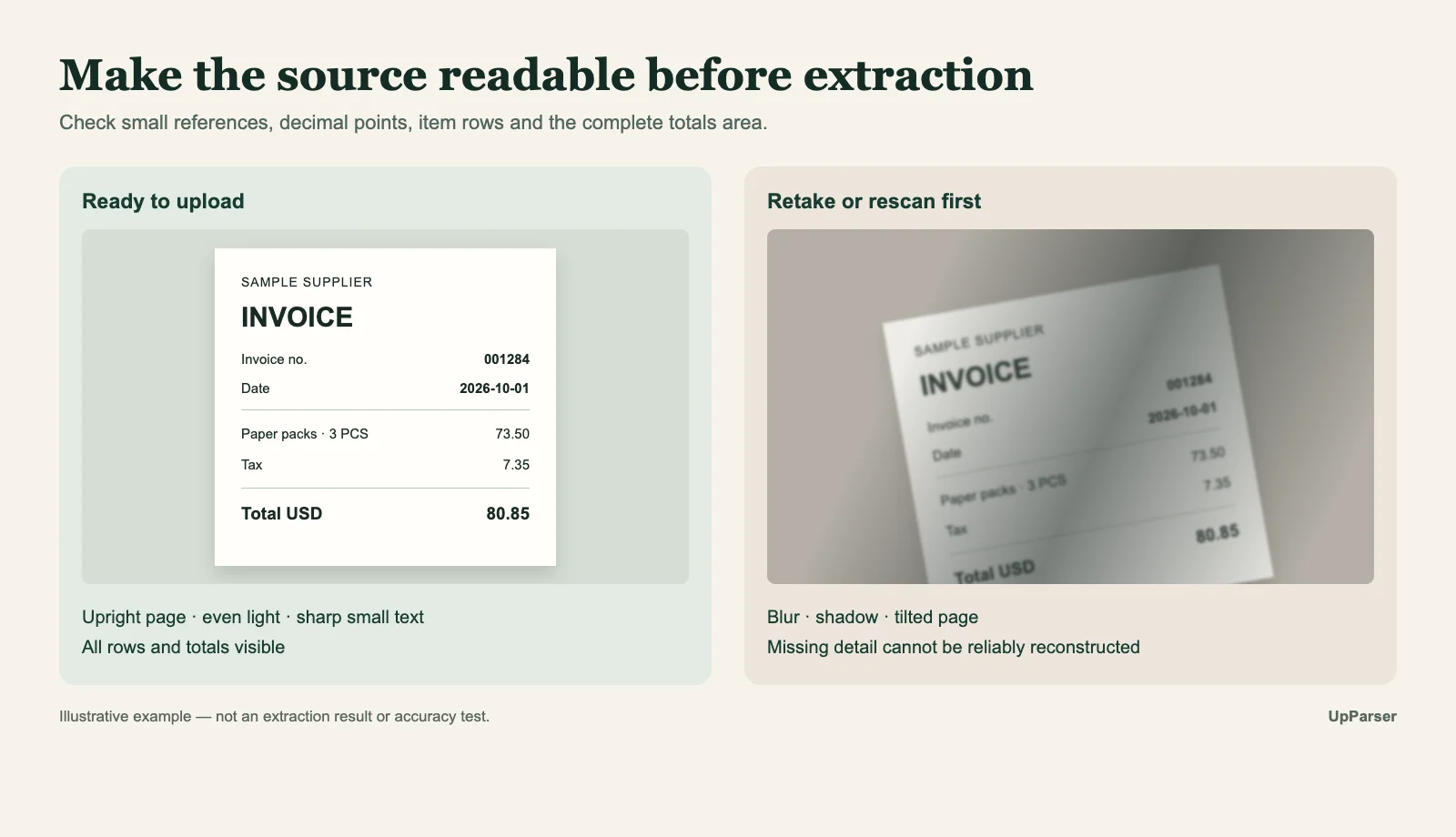
This is an illustration of source quality, not an UpParser accuracy test.
If an iPhone photo is HEIC and the upload screen does not accept it, export it as JPG. Changing a blurry image to PNG or PDF does not restore missing detail.
Step 2: Choose What You Need
For a basic invoice, start with supplier, invoice number, date, currency, tax, and total. Add due date or product rows if you need them.
You can use the preset. If you change it, a short instruction works:
Get the supplier, invoice number, date, currency, tax, total, and each product's description, quantity, unit price, and amount. Leave missing information blank.
Step 3: Upload to UpParser
Open the Invoice Parser, click Upload and extract, choose the file, and sign in if asked. Check the supported formats and limits shown on screen.
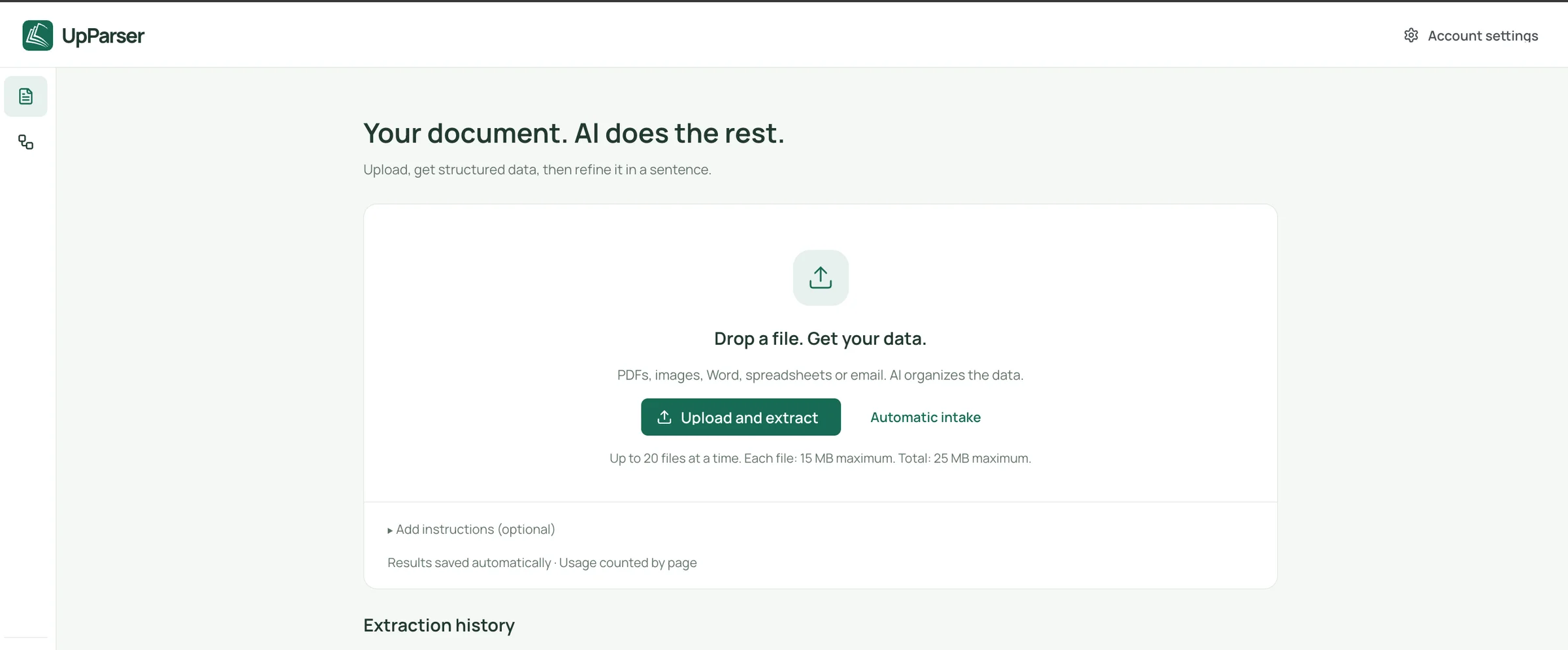
For several pages of the same invoice, keep them in order, preferably in one PDF. Do not assume separate photos will automatically become one invoice record.
Step 4: Compare the Result with the Original
Check the supplier, invoice number, dates, currency, tax, and total. Small characters deserve extra attention: 0/O, 1/I, decimal points, and leading zeros.
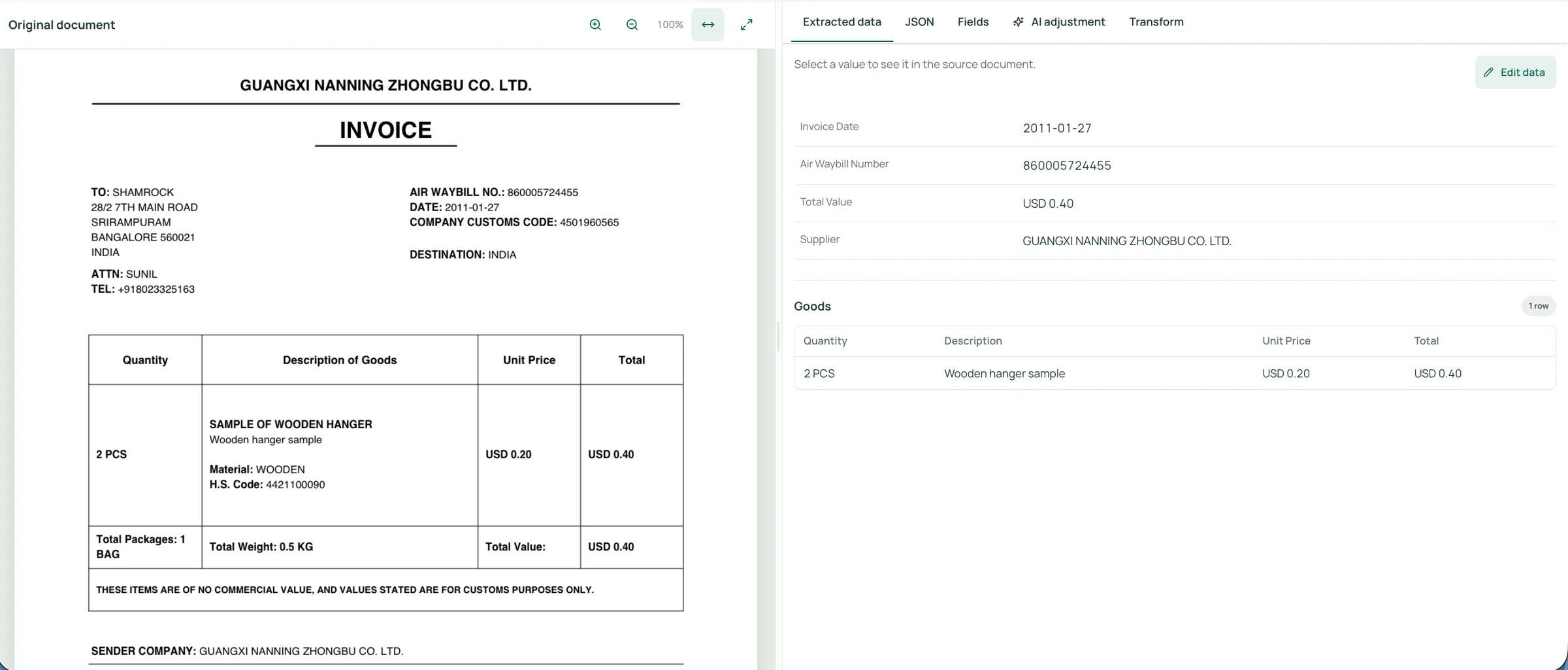
Check the label beside each value. A delivery date is not necessarily the invoice date, and an amount due may differ from the invoice total.
These supplied screenshots explain the interface; they are not a measured scan-extraction test.
Step 5: Check the Product List
Count the rows and compare each description, quantity, price, and amount with the source. Check the bottom of each page for missed or repeated products.
Add the line amounts and compare them with the invoice, allowing for tax, freight, discounts, and credits. Matching totals alone do not prove every row is right.
Step 6: Fix a Value or Ask for a Change
Use Edit data to correct a value. Use AI adjustment for a request such as “Keep the invoice total separate from the amount due” or “Include the full product description.” Review the preview before accepting it.
The supplied adjustment screen applies to the current file. Check the scope in your workspace when reusing a setup.
If an amount is unreadable, get a clearer original. A new instruction cannot make a missing number certain.
Step 7: Download and Open the File
Click Download, choose Excel or CSV, and confirm.
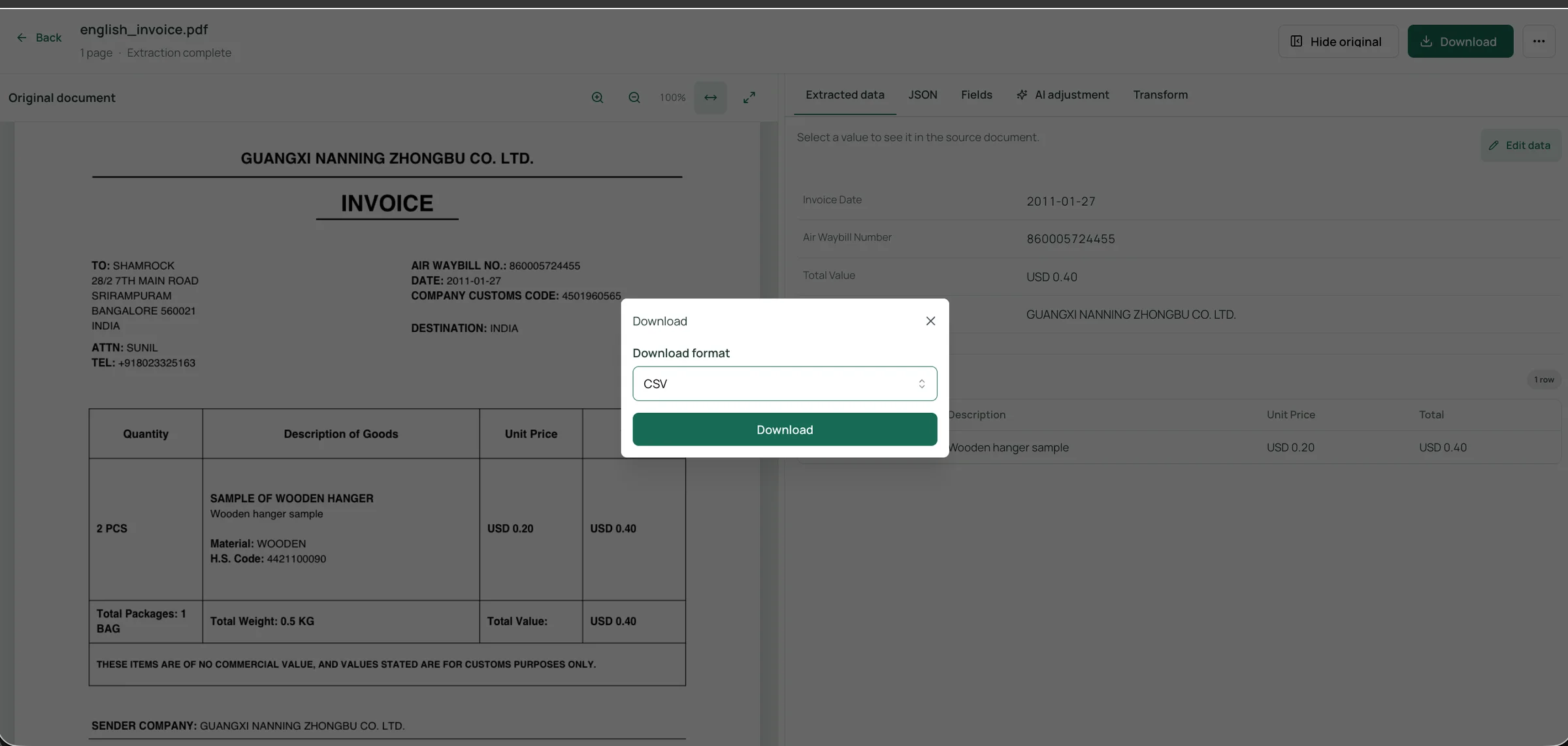
Open the file and check that invoice numbers keep their zeros, dates mean the right day, and product rows are complete. Before calculations, separate text such as 3 PCS or USD 73.50 into numbers and their units or currency.
For CSV in Excel, use Data → From Text/CSV. Set invoice-number columns to Text, choose the file's actual encoding, and check the preview before loading.
You can start without formulas: compare one invoice with the source, then repeat the same checks. If you need to move the results into accounting software, follow the QuickBooks and Xero steps.
Example: checking a scanned invoice before spreadsheet use
Suppose a fictional invoice shows these values:
| Field | Source value | Review target |
|---|---|---|
| Invoice number | 001284 | Preserve as text, including both leading zeros |
| Invoice date | 2026-10-01 | Retain the correct issue date |
| Currency | USD | Keep the currency identified |
| Quantity | 3 PCS | Separate 3 and PCS if needed |
| Unit price | USD 24.50 | Preserve the decimal and currency |
| Subtotal | USD 73.50 | Confirm 3 × 24.50 = 73.50 |
| Tax | USD 7.35 | Check the stated amount against the source |
| Invoice total | USD 80.85 | Confirm 73.50 + 7.35 = 80.85 for this example |
This illustrates a review process, not a measured UpParser result. Another invoice may include discounts, freight, multiple tax rates, or credits that require different checks.
Common problems and what to do next
| Problem | What to check or change |
|---|---|
| Small amounts are unreadable | Obtain a better scan or retake the photo |
| Decimal points disappear | Inspect image detail and compare amounts with source lines |
| Decimal and thousands separators are confused | Confirm the invoice's number convention before checking totals |
| The wrong company becomes the supplier | Specify seller versus customer and inspect labels |
| Item rows merge | Check wrapped descriptions, row boundaries, and page breaks |
| Tax or total is missing | Include the complete totals area and all relevant pages |
| A reference loses zeros | Preserve it as text during review and spreadsheet import |
| A confident-looking total is wrong | Check field meaning as well as arithmetic |
| One page becomes a separate invoice | Verify document grouping before combining results |
| An iPhone photo will not upload | Check the file type and export it as JPG if needed |
Frequently asked questions
Can I convert a scanned invoice to Excel?
Yes, with a tool that accepts scanned documents and extracts structured fields and tables. In UpParser, upload the invoice, review the result, and choose Excel export. Check the workbook before using it for calculations.
Can I convert a JPG invoice to Excel without making a PDF first?
Yes, when the extraction tool accepts JPG images. UpParser's Invoice Parser lists JPG and JPEG support. Changing a JPG into a PDF is not necessary merely to request spreadsheet output.
Is invoice image-to-text the same as invoice data extraction?
No. Text recognition returns characters. Invoice data extraction also organizes them into meaningful fields and item rows for review and export.
Should I use JPG or PNG?
Use the clearest available source that the tool accepts, and avoid unnecessary conversion or compression. A sharp JPG is more useful than a blurry image saved as PNG.
Can software recover a cropped total or unreadable invoice number?
Do not rely on it to reconstruct missing information. Get a complete, clearer source or confirm the value separately rather than accepting a plausible guess.
Will saving a photo as PDF improve extraction?
Not by itself. A PDF containing the same image still has the same blur, missing detail, and shadows. Improve the source image rather than changing only its container.
Can it read handwritten or faded invoices?
Treat these as higher-risk. Test with a sample, review every value, and confirm important amounts with the supplier.
What about invoices in other languages?
Include a sample in your test, and review supplier names, labels, dates, and decimal conventions more carefully.
How do I handle many scanned invoices at once?
Define one common field list and process them in manageable batches. See our guide to converting multiple invoices to Excel or CSV for batch structure, limits, and consolidation.
Turn scanned invoices into reviewed data
Start with a complete, readable scan or photo. Define the fields you need, check the extracted values beside the original, and review the item rows before exporting. A good first test is one invoice you have already entered by hand: compare the extraction with your own record to see where review matters most.
About the author
Dylan Dan is a document parsing and data processing specialist with years of hands-on experience. He helps readers extract, organize, and check data from invoices, bank statements, receipts, and other documents, turning document content into structured data that is easier to use.