 UpParser
How to Convert Multiple Invoices to Excel or CSV
Convert multiple supplier invoices to Excel or CSV. Follow the screenshot tutorial to standardize fields, review results, and combine exports into one invoice ledger.
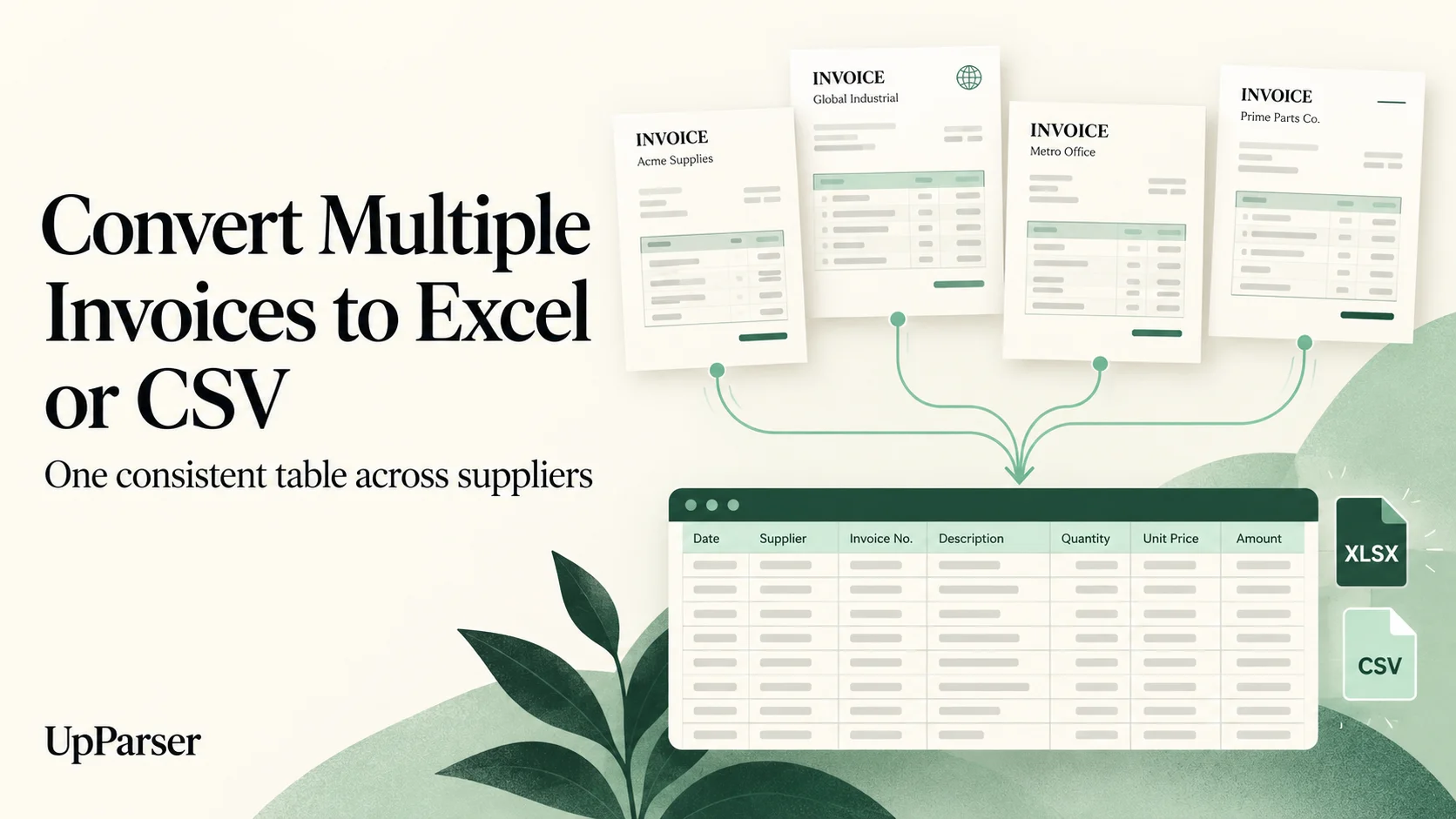
Quick answer: Upload a small group of invoices to UpParser, check each result, and download Excel or CSV. Use the same column names and put the reviewed rows into one master table.
The screenshots explain the upload, review, and download steps. Batch export options can change, so check your workspace; if downloads are separate, combine the files as explained below.
The process at a glance
-
Decide what one row represents.
-
Define a common field list for every supplier.
-
Upload a manageable batch with consistent instructions.
-
Review each result against its source.
-
Export to Excel or CSV.
-
Combine reviewed exports into a master table.
-
Check completeness, totals, and duplicates.
Start with one definition of "one table"
For a payment list, use one row per invoice. For a product list, use one row per product, with an invoice reference on every row. Keep the two views in separate sheets when you need both.
Step 1: Choose the Columns for Your Table
For a simple payment list, use:
| Column | What to put in it |
|---|---|
| Source file | Original invoice filename |
| Supplier | The company that sent the invoice |
| Invoice number | The printed reference, including leading zeros |
| Invoice date and due date | Keep these in separate columns |
| Currency | USD, EUR, or the currency shown |
| Tax and total | Separate amounts |
| Review status | Checked or needs review |
Use one row per invoice. If you also need product details, keep those in a separate sheet with an invoice reference on each row. A blank field is better than a guessed value.
For credit notes, mark the document type. Agree how credits will reduce your totals, and avoid reversing a negative amount twice.
Step 2: Open UpParser
Open the Invoice Ledger page or Invoice Parser.
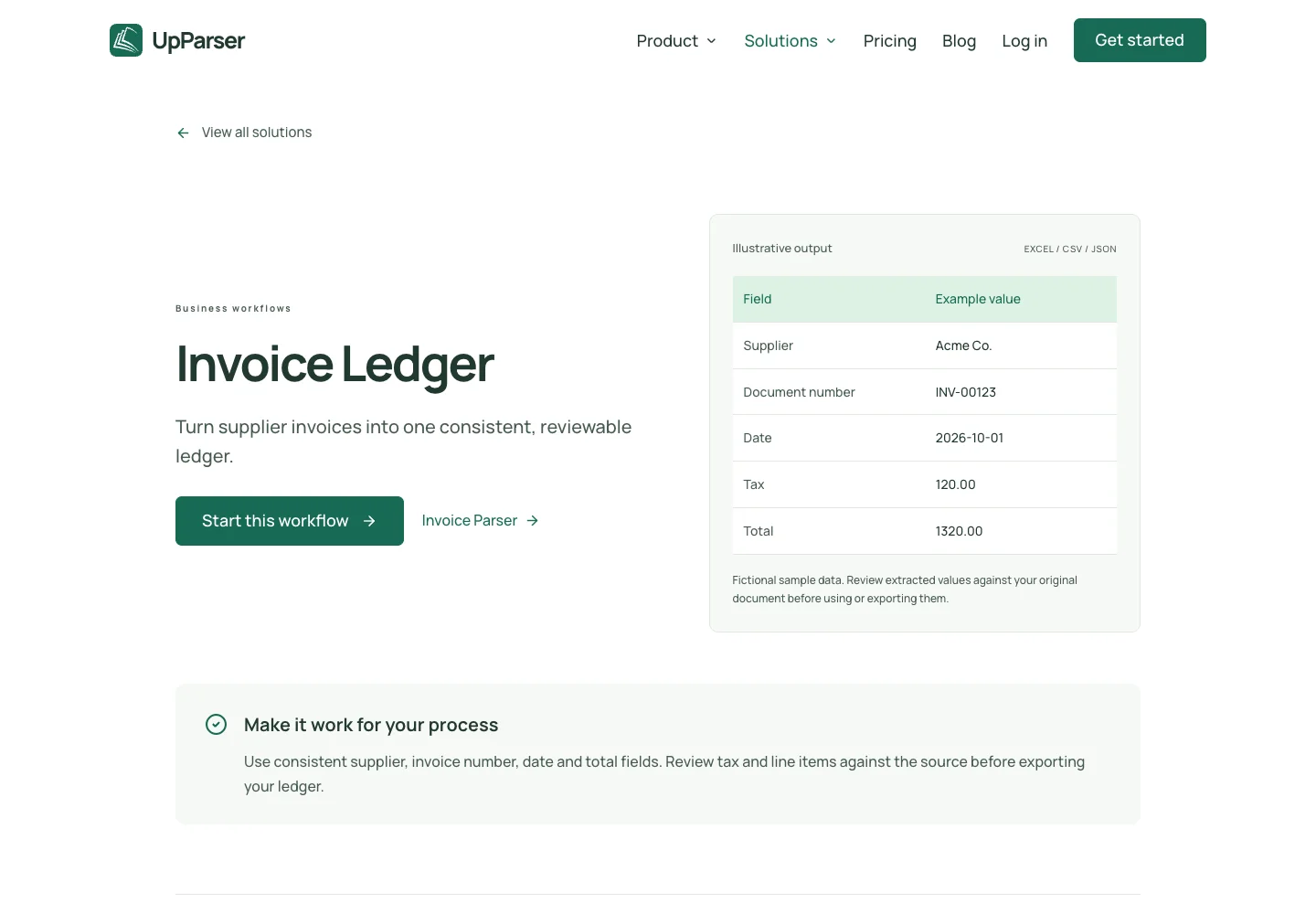
Use Adjust instructions if you want to change the preset. For example:
Get the supplier, invoice number, invoice date, due date, currency, tax, and total from each invoice. Keep missing information blank and keep each invoice separate.
The public-page illustration shows the intended layout; it is not a completed test of a mixed-supplier batch.
Step 3: Upload a Small Batch
Choose several files in the upload area. Start with a few invoices from different suppliers so you can check the results easily. Follow the file and size limits shown on your current screen.
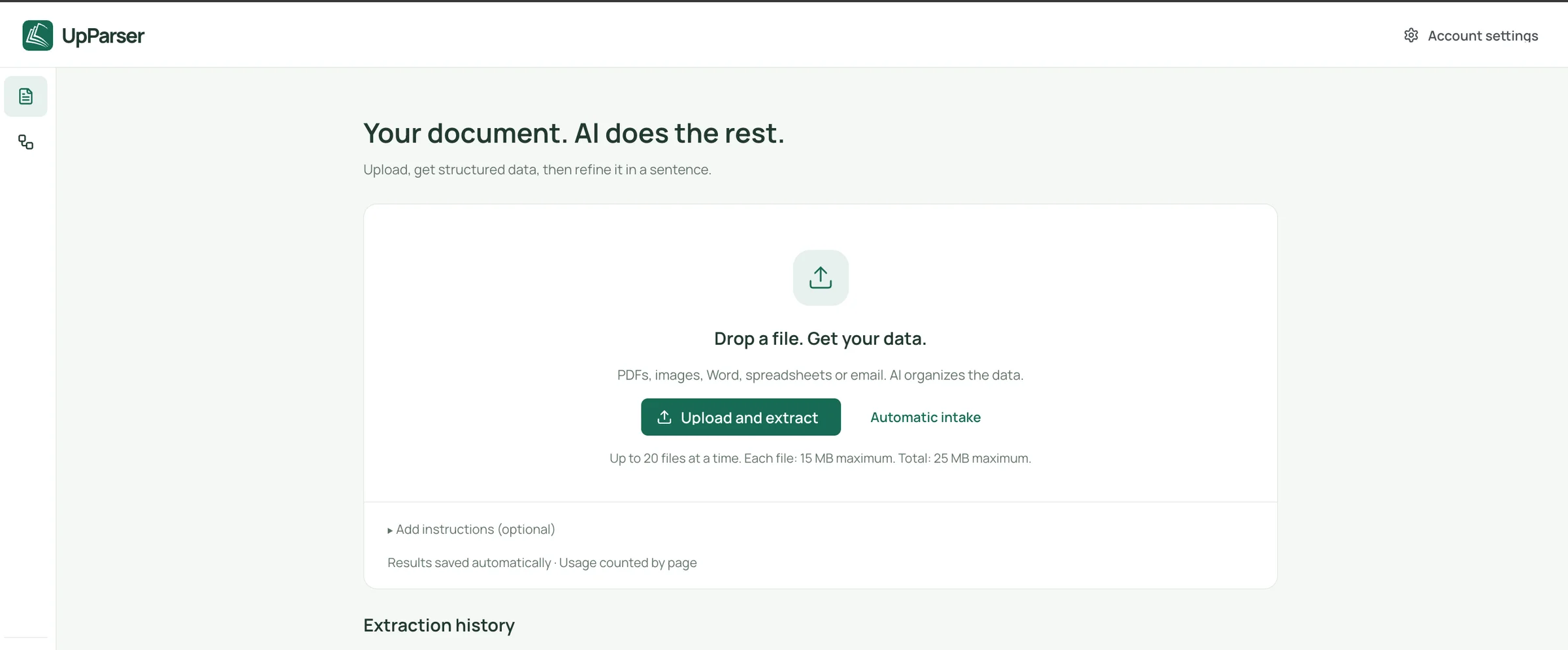
If you have more files than the screen allows, process them in smaller groups. Keep a list of filenames so you can spot missing or failed files.
Step 4: Check Each Invoice
Compare each result with its original. Check supplier, invoice number, date, currency, tax, and total. If you need product details, check every row too.
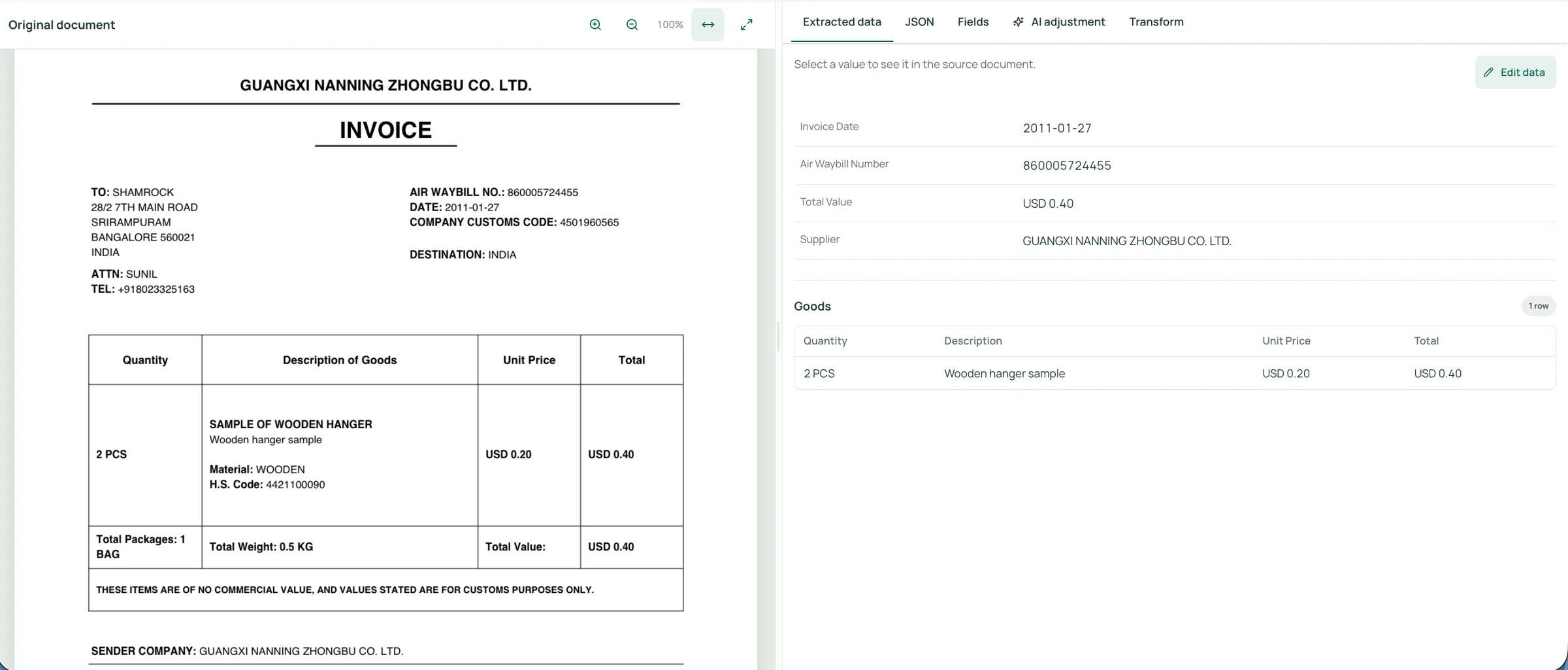
Use Edit data for a correction or AI adjustment for a short request such as “Keep the invoice date and due date separate.” Check the change before continuing.
The sample shown is a customs document. Its airwaybill number is a shipment reference and its declared value is not automatically an amount to pay.
Step 5: Download Excel or CSV
Click Download, choose Excel or CSV, and confirm the download. Inspect the actual file before combining it with others.
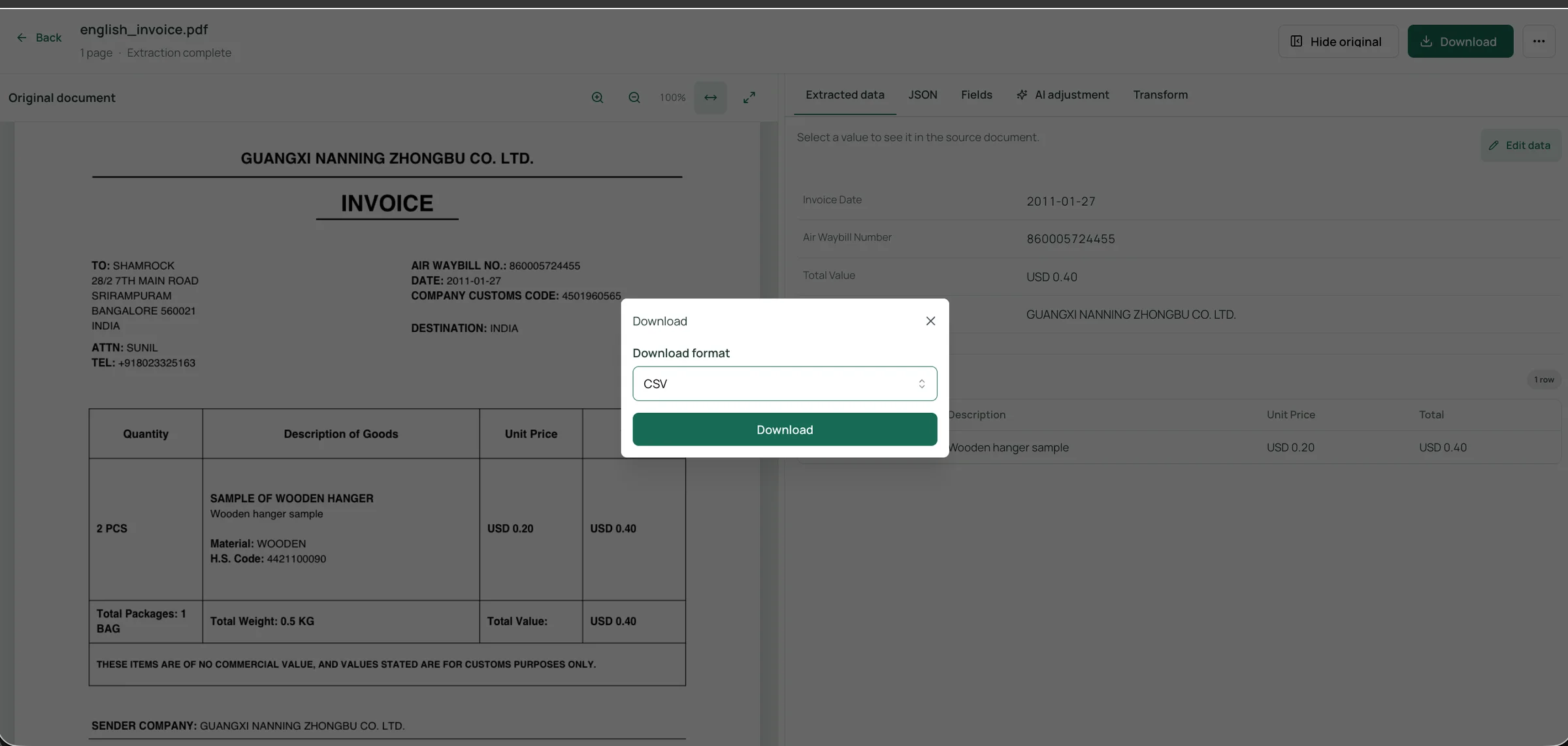
The screenshot shows a single-file download. Check your current workspace for batch-download options. If it gives you separate files, combine the reviewed exports in the next step.
Step 6: Put the Reviewed Rows in One Table
For a small batch:
- Create a master workbook with the column names from Step 1.
- Copy each checked invoice row into the next empty row.
- Keep the original filename or another invoice reference on every row.
- Keep product lists in a separate sheet if needed.
- Check that the number of invoices in the table matches the number you processed.
You do not need formulas or code to start. For recurring batches with matching columns, Excel's folder-import feature can combine files. First make sure you can combine a small sample correctly.
Example: three supplier layouts, one ledger
These fictional invoices use different layouts, but can share the same columns after review:
| Source file | Supplier | Invoice number | Invoice date | Currency | Tax | Total |
|---|---|---|---|---|---|---|
| supplier-a.pdf | Supplier A | A-001 | 2026-10-01 | USD | 10.00 | 110.00 |
| supplier-b.pdf | Supplier B | B-025 | 2026-10-02 | USD | 5.00 | 55.00 |
| supplier-c.pdf | Supplier C | C-104 | 2026-10-03 | EUR | 8.00 | 88.00 |
This is an example of the master table, not an actual combined UpParser export. The two USD invoices total USD 165.00; keep the EUR invoice separate when adding amounts.
Step 7: Check completeness, totals, and duplicates
Before using the combined table:
- Compare its invoice count with your file list.
- Look for the same supplier and invoice number appearing twice. Check the source before deleting a suspected duplicate.
- Filter for blank invoice numbers, dates, currencies, and totals.
- Compare each total with its original invoice. Allow for tax, discounts, freight, and credits.
- Add totals separately for each currency.
Mark each row Checked or Needs review. Keep uncertain rows out of your accounting import until you resolve them. These are checks you perform in your spreadsheet, rather than a claim of automatic duplicate detection or accounting approval.
Importing into accounting software
To use the table in QuickBooks, Xero, or another accounting app, download that app's import template and match your columns to it. Test one bill before importing the rest.
Supplier invoices normally belong under Bills, while invoices you issue to customers belong under Sales invoices. Import availability varies by product, plan, and country.
Follow our QuickBooks and Xero import walkthrough. This is a file-export-and-import route; it does not require coding.
Common problems with bulk invoice-to-Excel workflows
| Problem | What to check or change |
|---|---|
| Different supplier labels create extra columns | Map them to common fields after checking their meaning |
| Invoice totals increase after adding item rows | Separate invoice and item tables, or exclude repeated totals from aggregation |
| Leading zeros disappear | Import invoice and reference columns as Text |
| Dates change meaning | Confirm the source convention before normalization |
| Currency text prevents calculations | Separate verified currency from numeric amounts |
| Credit notes inflate payables | Flag document_type and normalize signs once under your ledger convention |
| Some documents disappear from the final table | Compare the ledger with the input and unresolved-document lists |
| A new supplier produces different output | Refine instructions and test that layout before processing more |
| Corrections appear twice | Identify which earlier record the revised export replaces |
When this approach fits
| Situation | Best fit |
|---|---|
| A few invoices, one-off | Manual entry may be faster |
| Recurring batches from mixed suppliers | Extraction tool with review with matching columns, as in this guide |
| One fixed template from a single supplier | A scripted or template-based extractor may be enough |
| Strict audit or compliance needs | Extraction plus documented human review of every record |
Frequently asked questions
Can UpParser process multiple invoices?
The public pricing page lists batch processing, and the workspace screenshot shows a multiple-file upload interface. Check your current upload limits and page allowance before submitting a batch.
Can different supplier layouts go into one Excel table?
Yes, if their reviewed values are mapped to the same output columns. Resolve layout differences during extraction and field mapping rather than creating a separate master-table structure for each supplier.
Does selecting several files guarantee one combined download?
No. Confirm the batch-download options in your workspace. If results export separately, use matching column names and copy the reviewed rows into one table.
Should I use Excel or CSV?
Use Excel when separate sheets and a review workbook help. Use CSV when a destination expects one text table, keeping summary and item data separate where the destination allows.
Can I combine multiple invoices into one PDF first?
Only if the workflow reliably identifies invoice boundaries. Separate files keep a clearer link between a document and its result.
How should I handle credit notes?
Add document_type, preserve the source amount, and apply your ledger sign convention once. Positive printed credit-note amounts may need normalization; already negative credits must not be negated again.
What about scanned or multilingual invoices?
Include a few in your test batch and review them more carefully, particularly dates, decimal separators, and supplier names.
How long does a batch take?
Processing time depends on file count, page count, and layout complexity, so test with a small batch first and plan your review time separately.
Build a consistent invoice ledger
Start with a representative sample from each supplier layout. Define common fields, process a manageable batch, review the results, and export Excel or CSV. A good first test is three invoices from three different suppliers: it quickly shows whether your fields come out as expected before you commit a full batch.
Consolidate reviewed records into a master table with clear source references and a consistent row structure.
About the author
Dylan Dan is a document parsing and data processing specialist with years of hands-on experience. He helps readers extract, organize, and check data from invoices, bank statements, receipts, and other documents, turning document content into structured data that is easier to use.