 UpParser
How to Extract Invoice Data from PDF Using an API
Understand invoice extraction APIs in plain language. Start with a no-code UpParser test, then learn what a developer needs to automate invoice submission and delivery.
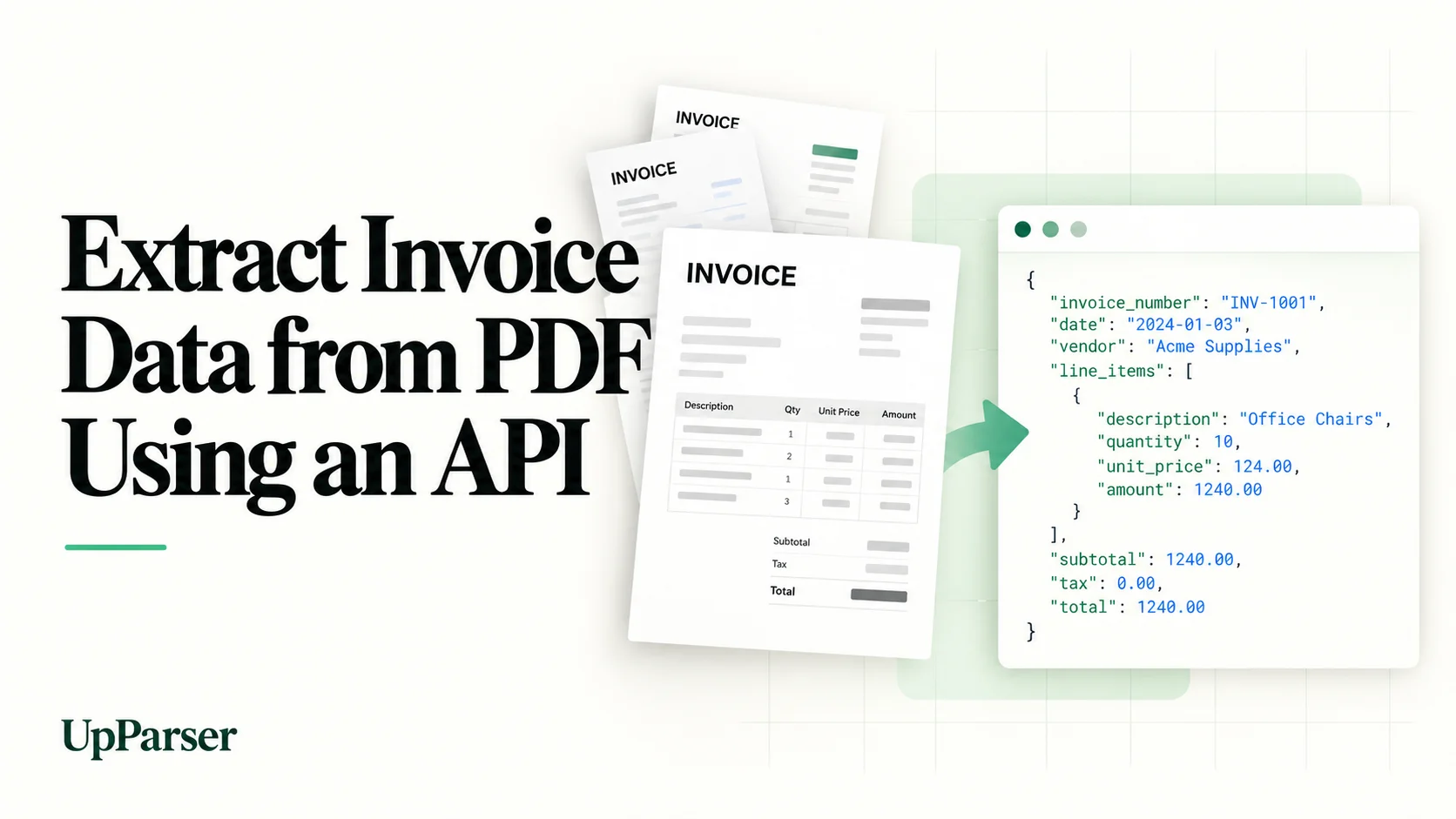
Quick answer: An invoice extraction API lets another program send an invoice to an extraction service and receive its details automatically. Think of it as the same upload-and-read process, started by software instead of a person. You can first test your invoices in UpParser's browser interface; you do not need to write code to find out whether the extracted information is useful.
What Does an Invoice API Do?
Your program sends a PDF or supported image. The extraction service reads it and returns information such as supplier, invoice number, date, total, and products.
The result is often JSON: a text format that labels values so software knows which number is the total and which text is the supplier. You do not need to understand JSON to download an Excel file in the browser.
Do You Need an API?
| What you want | Where to start |
|---|---|
| Convert a few invoices to a spreadsheet | Upload in the browser and download Excel or CSV |
| Process a regular set of similar invoices | Try a saved workflow in the browser |
| Have your own software submit invoices automatically | Ask a developer to evaluate the extraction API |
Start with the browser if you are unsure. An API becomes useful when your own system needs to send and receive files repeatedly.
First, Test One Invoice in UpParser
Step 1: Open the Invoice Parser
Go to the Invoice Parser. Use the preset or click Adjust instructions and say: “Get the supplier, invoice number, date, currency, tax, total, and product list.”
Step 2: Upload
Click Upload and extract, select the file, and sign in if asked. Check the current upload limits.
Step 3: Check
Compare the result with the original. Check reference numbers, dates, amounts, and every product row. Use Edit data for a correction or AI adjustment for a missing detail.
Step 4: Download
Click Download, choose Excel or CSV, and confirm. Open the file to see whether it contains the information your business needs. JSON is another available format for a developer who needs labeled data.
If You Want to Automate It, Give Your Developer This List
- The invoices you want to process, including a scan and a multi-page example if you receive those.
- The details you need, such as supplier, invoice number, tax, total, and products.
- Where the checked result should go.
- Which documents must be reviewed by a person.
- How you will notice a failed or missing file.
Ask the developer to use the provider's current document-extraction API documentation for the address to send files to, authentication, limits, and result format.
The Automated Process in Plain Language
- Your program sends the invoice using a private access key.
- The service reads it. Some services return the result immediately; others finish later.
- Your program retrieves the result or receives a completion notice. That notice is often called a webhook.
- Your review rules decide whether a person needs to check the invoice.
- The checked data moves to its destination.
The developer should keep access keys private, record failures, and make sure repeated delivery does not create the same invoice twice. Exact requests and features depend on the provider's documentation; this guide does not present invented UpParser API calls.
What Should You Check Before Using the Data?
Check that required information is present, product rows are complete, and amounts agree with the source. Account for tax, freight, discounts, and credits. Keep currencies separate and preserve reference numbers with leading zeros.
A confidence score, if a service provides one, is a review hint rather than proof that a value is correct. Confirm which signals the chosen service actually returns.
Can the Result Go to QuickBooks or Xero?
For a simple starting point, download Excel or CSV and use the receiving app's import template. Follow our QuickBooks and Xero walkthrough. Availability depends on the accounting product, plan, and region.
A developer can investigate an automated connection later. Check the actual supported connection before promising direct sync.
Frequently Asked Questions
Do I need an API to convert invoices to Excel?
No. Use UpParser in the browser: upload, check, and download.
What does “choose fields” mean?
Choose the information you want as spreadsheet columns—for example, supplier, invoice date, and total.
What is JSON?
It is labeled text that programs can read. Use Excel or CSV if your next step is a spreadsheet.
What is a webhook?
It is a message sent to another program when something happens, such as an extraction finishing. A developer sets up the receiving connection.
Will an API make every result correct?
No. It changes how documents are submitted and delivered. You still need clear originals and appropriate review.
Start with One Invoice
Test the information you need in the browser before building an integration. Keep the first workflow small: upload, check, and download. See current features and pricing when planning higher volume.
About the Author
Dylan Dan is a document parsing and data processing specialist with years of hands-on experience. He helps readers extract, organize, and check data from invoices, bank statements, receipts, and other documents, turning document content into structured data that is easier to use.