 UpParser
How to Convert Invoices to CSV and Organize the Fields
Convert PDF invoices to CSV with a screenshot tutorial. Organize columns, dates, currencies, decimals, and line items before importing the file into another system.
Quick answer: To convert an invoice to CSV, extract its main invoice details and line items, check them against the original, and download the result as CSV. Then decide what each row should represent (one invoice or one line item), and check the column names, dates, currency codes, decimal separators, and item rows before importing the file anywhere. A file that ends in .csv is not automatically ready for your accounting system: the values and structure must match what the destination expects.
This tutorial shows the invoice-to-CSV workflow in UpParser, including the CSV download dialog, and then explains how to organize the downloaded data. The example CSV later in the guide is a proposed cleaned structure, not an actual downloaded file.
What to Check Beyond the Download Button
Conversion guides vary in detail. PDFTables focuses on conversion and download steps. BillBjorn also explains its output blocks, encoding, dates, quoting, and destination mapping. WaveSpeed AI describes invoice-level versus line-level output and regional format options. These examples show that export details are covered by some providers; the remaining task is to verify how your own file fits the receiving system.
What happens after the download is where most import problems start:
- Row definition. Should one row be one invoice or one line item? The answer changes your columns, and a wrong choice can double-count totals.
- Column design. Which columns to include, how to name them, and why invoice number, shipment reference, and customs value should not share a column.
- Dates. A value like 03/04/2026 can mean March 4 or April 3. Converting it without context is a guess.
- Currency and decimals. "EUR 1.234,56" and "1,234.56" look similar but follow different conventions. Removing punctuation blindly can turn 0.40 into 40.
- Quoting. Descriptions with commas or quotation marks can create extra columns if the CSV is not quoted correctly.
- Opening the file. Excel can drop leading zeros from invoice numbers or misread dates the moment you double-click the file.
- Blank versus zero. A missing tax amount is not automatically 0, and a missing due date should stay empty.
This guide covers those steps in order, with a checklist at the end.
Decide What Each CSV Row Represents
Choose the table that fits your task:
| Your task | Use this layout |
|---|---|
| Track invoices and due dates | One row per invoice |
| Analyze products, quantities, or prices | One row per product |
| Keep both | Separate invoice and product tables, linked by an invoice reference |
Keep the invoice reference on each product row. If the file will go to another app, start with that app's import template. You do not need technical column names or a custom data format.
Step 1: Open the Invoice Parser
Go to UpParser's Invoice Parser. The preset is a starting point; you can use it as it is.
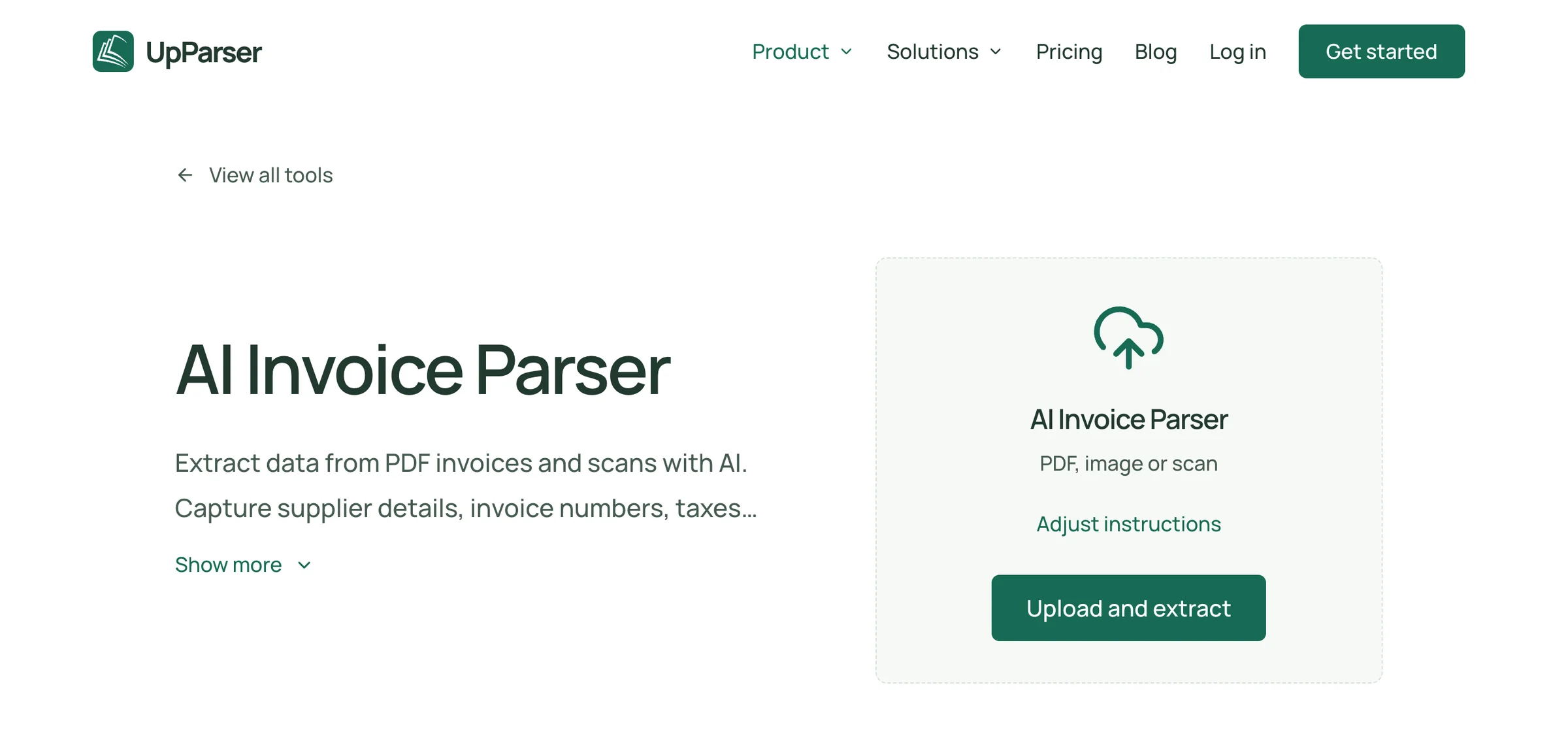
If needed, click Adjust instructions and say: “Get the supplier, invoice number, date, currency, tax, total, and product list. Leave missing information blank.”
Step 2: Upload the Invoice
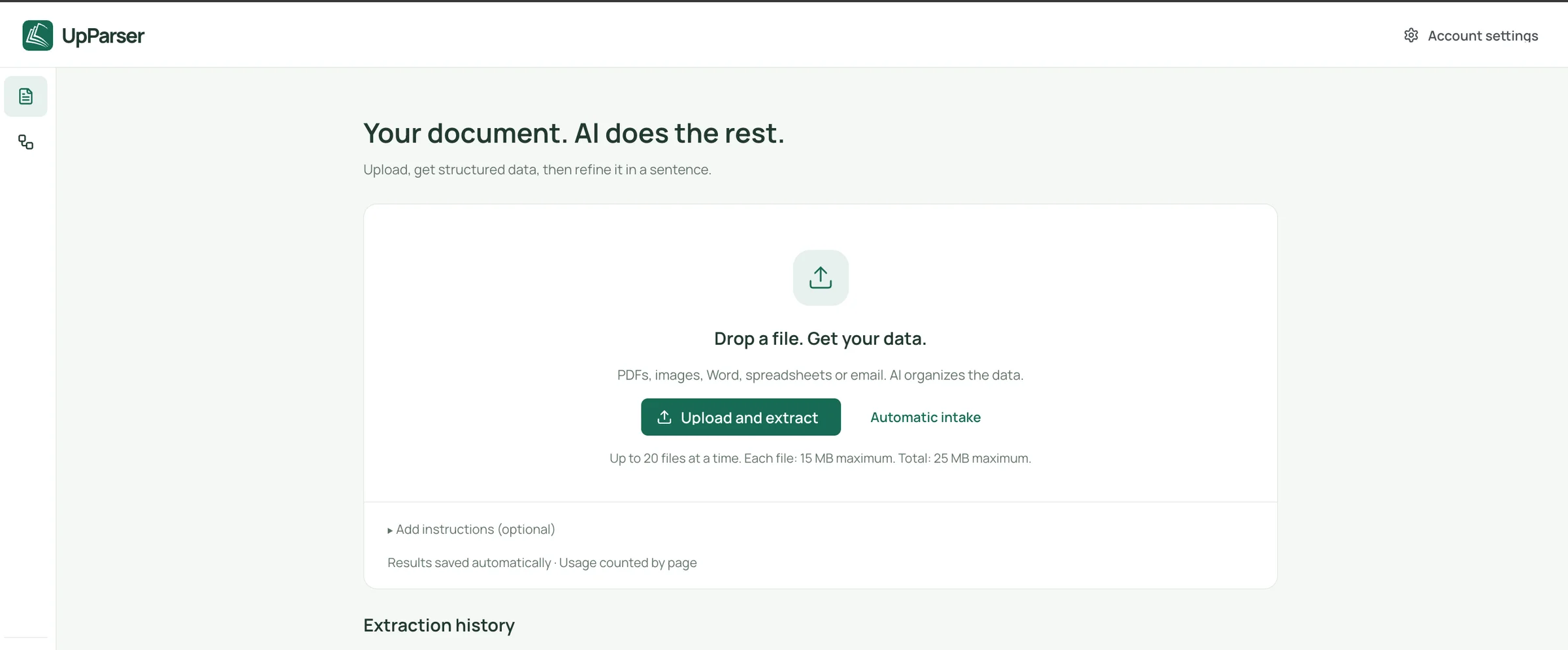
Click Upload and extract, choose the file, and sign in if asked. Use a clear, complete PDF or a supported image. Check the limits displayed on your upload screen.
Step 3: Wait for the Result
The processing screen shows your file's progress. Open the result when it is ready.

Step 4: Check It Beside the Original
Compare the supplier, reference number, dates, amounts, and product rows with the invoice. Correct wrong values with Edit data.
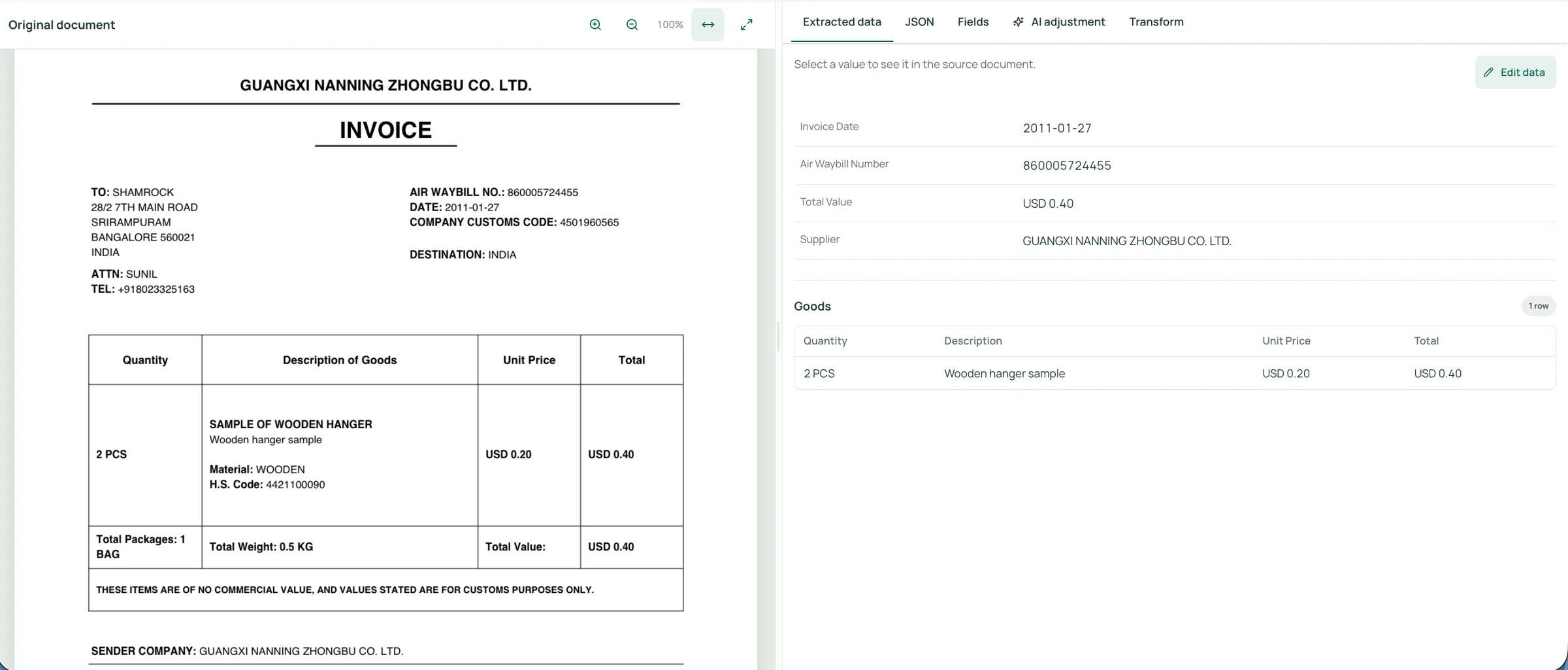
This example shows a shipment reference and a customs value. They should not be renamed as an invoice number or an amount due.
Step 5: Add Anything Missing
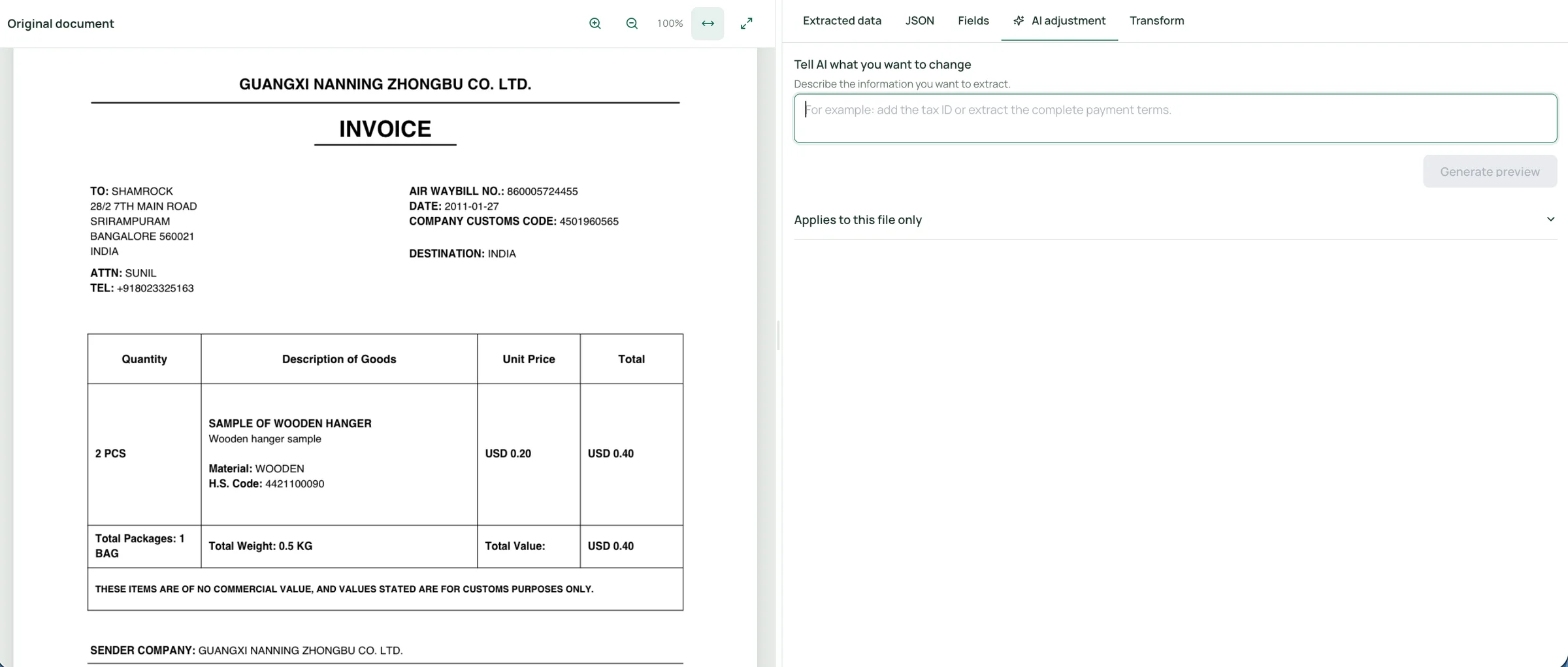
If you need another detail, open AI adjustment and make a short request—for example, “Add the destination country and keep quantity separate from its unit.” Check the preview against the original. In the supplied screen, this adjustment applies to the current file.
Step 6: Download as CSV
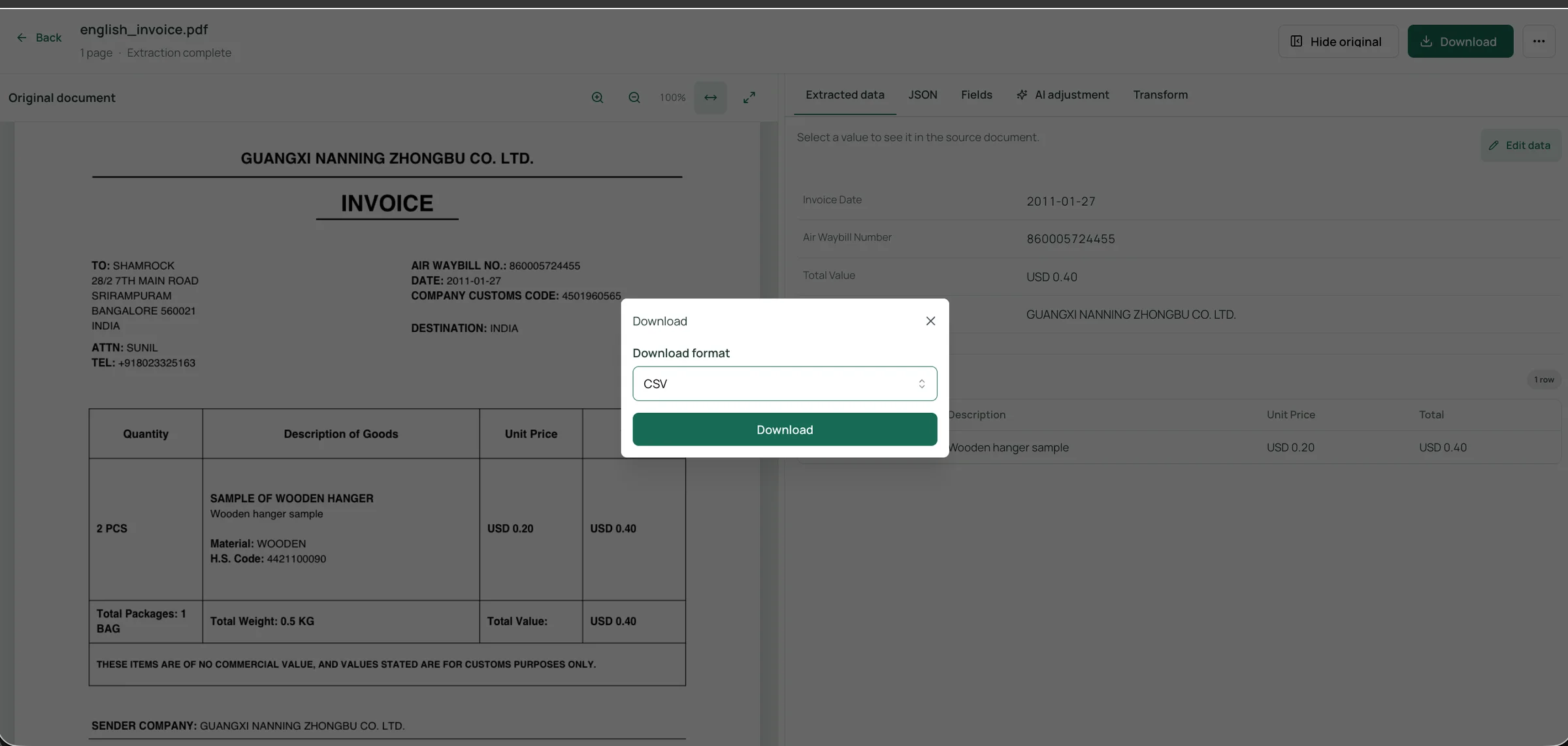
Click Download, select CSV, then click Download in the dialog. Open the file and check that the columns are suitable for your next app.
Organize the CSV Fields Before Importing
CSV is a plain table. These checks make it easier to use:
| Information | Simple rule | Example |
|---|---|---|
| Invoice number | Keep it as text so zeros stay | 001284 |
| Date | Use one clear format that your next app accepts | 2026-10-01 |
| Currency | Keep it separate from the amount | USD and 73.50 |
| Amount | Confirm the decimal convention before adding values | 1,234.56 versus 1.234,56 |
| Quantity | Separate the number from the unit | 3 and PCS |
| Product list | Use one row per product when you need item detail | Three products → three rows |
| Missing information | Keep it blank; do not turn missing tax into zero | Blank tax cell |
For a payment list, use one row per invoice. For a product list, repeat the invoice reference on each product row, but do not add up repeated invoice totals.
These are suggested cleanup rules, not a promise that every UpParser CSV already uses these columns. For accounting imports, use the receiving app's sample file. See the QuickBooks and Xero section.
Example: Two Ways to Structure the Same Invoice
For a payment tracker, one invoice with two products can occupy one row. For a product list, it needs two rows:
| Invoice reference | Product | Quantity | Line amount |
|---|---|---|---|
| INV-001 | Blue pens | 10 PCS | USD 20.00 |
| INV-001 | Paper packs | 2 PACK | USD 10.00 |
This is a fictional layout, not an actual UpParser export. Keep tax and the invoice total in separate invoice-level columns or another table. Do not sum a grand total repeated on every product row.
Handle Commas and Quotes Correctly
Descriptions may contain commas or quotation marks. A comma inside a value must not become an extra column.
Under common CSV conventions, fields containing commas, line breaks, or quotation marks are quoted. Quotation marks within those fields are doubled. See RFC 4180.
description,quantity
"Wooden hanger, sample",2
"Sample marked ""WOODEN""",2
Use a CSV-aware editor or exporter for these changes rather than manually joining values with commas.
Open the CSV Without Losing References or Dates
When checking the CSV in Excel, use Data → From Text/CSV where available instead of relying on automatic opening.
Inspect the delimiter and encoding, then use transformation controls to set invoice numbers and references to Text before loading. Microsoft explains these options in its CSV import guidance and leading-zero guidance.
Check that non-English supplier names remain readable. UTF-8 is a common choice, but use the encoding your destination requires. Also verify the delimiter: some regional imports expect semicolons rather than commas.
Formatting a reference column after zeros or digits have already been lost does not recover the original value. Re-import from the original CSV with the appropriate column type.
Final Invoice-to-CSV Checklist
Before importing the file into another application, confirm:
- Each row represents the intended unit: an invoice or an item.
- Column names and order match the destination's requirements.
- Invoice numbers and shipment references remain separate and intact.
- Dates are unambiguous and interpreted correctly.
- Currency codes and numeric amounts are separated where required.
- Decimal separators and precision are correct.
- Missing values have not been replaced with invented amounts or dates.
- Item rows match the original document.
- Repeated invoice totals are not counted once per item.
- Commas, quotation marks, and non-English text survive the import.
Frequently Asked Questions
Can I convert a PDF invoice to CSV?
Yes. Use UpParser to extract the fields and item rows, review the result, and select CSV in the Download dialog. Inspect the exported structure before importing it elsewhere.
Can I convert scanned invoices to CSV?
UpParser's Invoice Parser supports scans and images. The CSV still needs review, especially for small amounts, decimal marks, reference numbers, and item rows.
What columns should an invoice CSV have?
It depends on the destination. A summary file commonly includes a document identifier, supplier, invoice number, dates, currency, subtotal, tax, and total. Add line number, description, quantity, unit, unit price, and line amount for item detail. Start from the receiving system's import template when it has one.
Should I use one CSV or two?
Use two linked files (invoice summary and line items) when the destination accepts them. Use one flat file with the invoice identifier repeated on each item row when it requires a single file, and avoid summing repeated invoice-level amounts.
Why does my CSV put currency and amounts in one column?
Extraction and export structures can vary. Review the actual file, request separate currency and amount fields if needed, or split them during downstream cleanup. Verify the currency before removing its label.
Why do invoice numbers lose leading zeros in Excel?
Excel may interpret them as numbers. Import the reference columns as Text before loading the CSV rather than relying on automatic conversion.
Does downloading CSV make the data ready for accounting?
The format alone is not enough. You still need the correct column mapping, field meanings, dates, amounts, and review checks required by the receiving system.
Convert Your Next Invoice to CSV
Upload your invoice, define the fields you need, check them beside the original, and choose CSV in the download dialog. Then validate the file's structure in the application where you plan to use it.
About the Author
Dylan Dan is a document parsing and data processing specialist with years of hands-on experience. He helps readers extract, organize, and check data from invoices, bank statements, receipts, and other documents, turning document content into structured data that is easier to use.