 UpParser
Automated Invoice Processing Guide: How to Turn Invoice PDFs into Clean Data
Turn invoice PDFs, scans and email attachments into reviewed, structured data. Learn how extraction, review and export fit into an automated invoice workflow.
Quick Answer
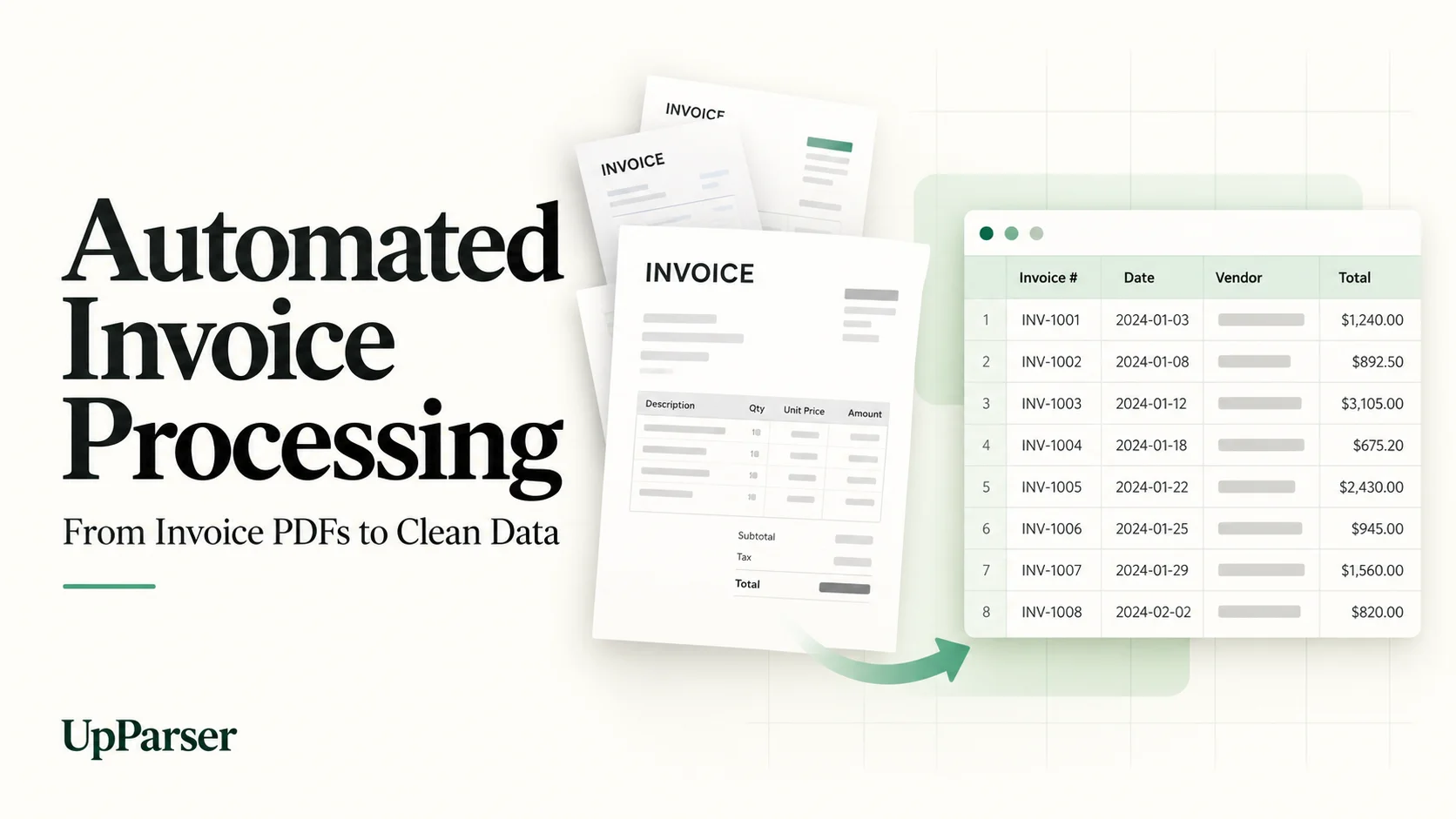
Automated invoice processing uses software to capture invoices, extract their data and move them through a review or accounts payable workflow. After an invoice is received, invoice data extraction turns fields such as supplier, invoice number, date, tax, total and line items into structured data you can check and export. Approval routing, purchase order matching and payment depend on your business rules and the systems you connect.
With UpParser you upload a PDF, image or scan, let AI extract the fields, review the values beside the original document, and export to Excel, CSV or JSON. No template is needed, and the free plan includes 20 pages every month.
Where Automated Invoice Processing Really Starts
When people search for automated invoice processing, they often picture one system that receives, reads, approves, matches and pays invoices. In practice the chain has distinct stages:
| Stage | What happens | Who usually does it |
|---|---|---|
| 1. Capture and extraction | The document is read and turned into fields | Extraction software |
| 2. Review | Values are checked against the original | A person, ideally with the source in view |
| 3. Delivery | Clean data goes to a spreadsheet, ledger or another tool | Export, API or webhook |
| 4. Downstream steps | Approval routing, purchase order matching, payment | Your own rules and systems |
Stages 1 to 3 can remove repetitive data entry and provide a foundation for the steps that follow. If extracted data is wrong or inconsistent and review does not catch it, later stages can inherit the problem.
UpParser’s accounts payable document processing solution focuses on that foundation. It reads your documents, lets you verify the result, and delivers structured data you can take into whatever process comes next. It is not an approval or payment platform, and you do not need one to save real time.
What a Good Invoice Extraction Step Should Do
Before choosing any invoice automation tool, it helps to know what to ask for. A dependable extraction step should:
- Work on the documents you actually receive. Invoices arrive as PDFs, scans, photos and email attachments, rarely in one tidy format.
- Not demand a template for every supplier. Building and maintaining a layout per vendor can add substantial setup work.
- Let you choose the fields. A freelancer, a retailer and a logistics team all care about different data.
- Show its work. You should be able to compare each extracted value with the original before anything leaves the tool.
- Export where you already work. Spreadsheets, CSV and JSON cover most workflows, with an API or webhooks for recurring flows.
- Be clear about cost. Pricing should be predictable before you upload your first file.
UpParser is built around these points.
How UpParser Handles an Invoice
Step 1: Open and upload
Open the Invoice Parser, click Upload and extract, and select your invoice. Sign in if asked. Check the supported file types and limits shown on screen.
Step 2: Check the result
Compare the supplier, invoice number, dates, total, and products with the original. Use Edit data to correct a value. To add a detail, use AI adjustment and write a short request such as “Also include the due date.”
Step 3: Download
Click Download, choose Excel or CSV, and confirm. Open the file before using it. If the setup works well, save it as a workflow so you can reuse the instructions for similar invoices.
You can use downloaded files in other tools. See how to prepare them for QuickBooks or Xero.
Why the Review Step Matters
Any tool that reads invoices will occasionally get a value wrong: a smudged scan, an unusual layout, a total in an odd place. What separates a useful tool from a risky one is how easily you can catch and fix those cases.
In UpParser you check results against the source side by side and edit values directly. Viewing, editing, exporting and resending saved results do not use up your pages, so careful review costs nothing extra. For finance work, check totals, tax, currency and line items before importing results into a ledger. For credit notes or ambiguous dates, confirm the sign and date format too.
Who Benefits Most
- Small businesses and freelancers who keep their books in a spreadsheet and are tired of retyping supplier invoices.
- Bookkeepers and accountants who receive client invoices in mixed formats and need one consistent structure.
- Operations and finance teams preparing invoices and purchase orders for an accounts payable review process.
- Retail and logistics teams extracting order, receipt and supplier invoice data for everyday operations.
The same approach works for receipts, bank statements, purchase orders and emails.
Pricing at a Glance
According to the UpParser pricing page, checked on October 23, 2026, UpParser prices by pages, and every plan includes the same features: email import, reusable fields, batch processing, Excel, CSV and JSON export, API and webhooks.
| Plan | Pages per month | Monthly price (USD) |
|---|---|---|
| Free | 20 | $0, no card needed |
| Paid | 500 | $29 |
| Paid | 2,000 | $79 |
| Paid | 6,000 | $199 |
How pages are counted:
- PDFs count by page. Images and other supported files count as one unit each. Email bodies and attachments are counted separately when processed.
- Technical failures and cancellations release the pages they reserved, and automatic system retries are never charged twice.
- Choosing to re-extract a document uses pages again.
- The free allowance refreshes each calendar month (UTC). Paid plan pages refresh each billing period; unused monthly pages do not carry over.
The pricing page currently states that purchases are not open yet, while free pages remain available. The free allowance is the way to start today.
Privacy and Control
Files and results are private to your account, and you can delete them at any time. Read the UpParser privacy policy before uploading anything sensitive.
Start with Reviewed Invoice Data
Automated invoice processing can start with a focused extraction workflow: get data off the document, check it against the source, and deliver it somewhere useful. UpParser covers those three steps without per-supplier templates, and you can test it on a real invoice for free.
FAQ
What is automated invoice processing? It is the use of software to capture invoices, extract their data, and move them through a review or accounts payable workflow. UpParser supports extraction, review and data delivery; approvals, matching and payments require your own rules and downstream systems.
Do I need to create a template for each supplier? No. Start with a document, describe the fields you want, and save the setup to reuse.
Which file types can I use? Use the file types and limits shown in the tool you choose. The Invoice Parser supports PDFs and supported images, including scans.
Can I choose which fields are extracted? Yes. Adjust the preset before uploading, or tell the AI what to change after you see the result.
Where can I send the extracted data? For most users, download Excel or CSV. Developers can use the separate API options when they need an automated connection.
Does viewing or editing results use my pages? No. Viewing, editing, exporting and resending saved results do not use pages. Re-extracting a document does.
Are my documents private? Files and results are private to your account, and you can delete them at any time.
Try UpParser on One Invoice
Pick one real invoice, the messier the better, and run it through.
- Open the invoice parser and sign in when prompted.
- Upload your invoice.
- Check the extracted data against the original.
- Export it to Excel, CSV or JSON.
About the Author
Dylan Dan is a document parsing and data processing specialist with years of hands-on experience. He helps readers extract, organize, and check data from invoices, bank statements, receipts, and other documents, turning document content into structured data that is easier to use.