 UpParser
How to Automate Invoice Data Extraction
Start invoice data extraction with one simple UpParser workflow: upload, check, download, and reuse the setup for similar invoices.
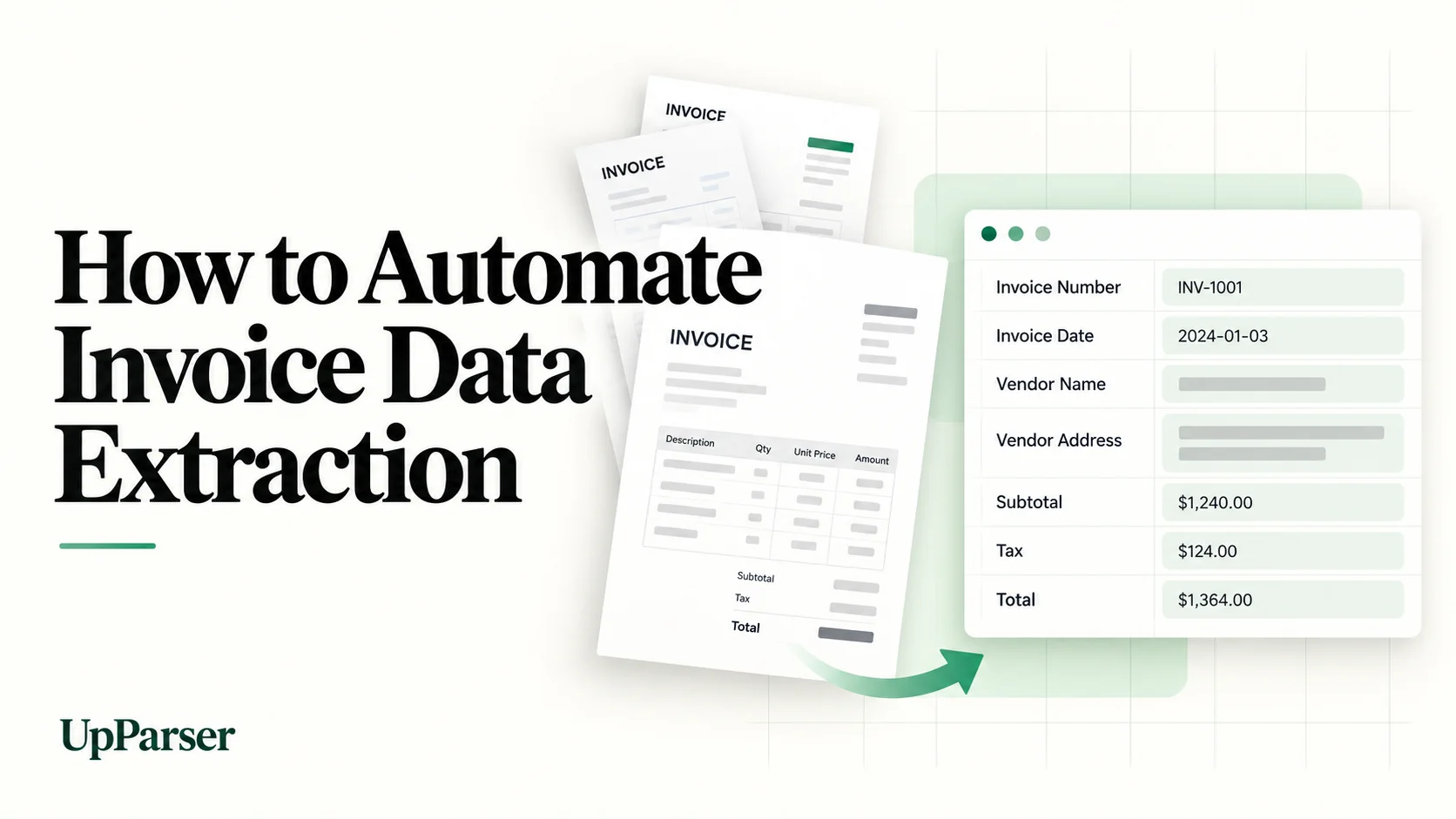
Quick answer: Automated invoice data extraction reads invoices and puts details such as supplier, date, total, and products into a table. In UpParser, start with one file: upload it, check the result beside the original, and download Excel or CSV. Save a setup that works for similar invoices.
You can begin in a browser without coding. Add more automation after you know the results work for your documents.
What is automated invoice data extraction?
Invoice data extraction turns the contents of an invoice into structured fields. Instead of someone reading each invoice and typing it into a spreadsheet, software pulls details like vendor name, line items and totals and organizes them into fields an accounting system can use.
Typical fields include:
- Vendor name, address and tax ID
- Invoice number, invoice date and due date
- PO number
- Line items (description, quantity, unit price, tax rate)
- Subtotal, tax, discounts and total
- Currency and payment terms
Extraction vs. invoice processing vs. software
These terms overlap, so it helps to separate them:
| Term | What it covers |
|---|---|
| Automated invoice data extraction | Reading the document and producing structured fields. Step one. |
| Invoice processing automation | The whole workflow: capture, extraction, validation, matching, approval, posting and payment. |
| Automated invoice processing software | The tool (or suite) that performs some or all of those steps. |
Extraction is the foundation. If the data coming out is wrong, everything after it, from matching to payment, inherits the error.
Why automate it
Manual entry takes staff time and creates opportunities for transcription errors. Measure your current time per invoice, correction rate, and review effort before estimating the benefit of automation.
Compare the complete workflow cost: software, configuration, review, exception handling, integration, and ongoing maintenance. Published vendor estimates are not a substitute for measurements on your own invoices.
How automated invoice extraction works
The basic process is simple:
- Add an invoice.
- The software reads it and puts details into named columns.
- You check and correct the result.
- You download the data or send it to the next part of your process.
For scans, the software first needs to recognize the printed text. A clear original helps.
Four ways to extract invoice data
| Method | How it works | Best for | Watch out for |
|---|---|---|---|
| Manual entry | A person types values | Very low volume | Slow, error-prone |
| Template / zonal rules | Fixed zones for each vendor layout | Few vendors with stable layouts | Relies on predefined rules or fixed zones, so it breaks when layouts change |
| OCR + machine learning (IDP) | Models trained on many invoice layouts | Many vendors, mixed formats | Needs a pilot to confirm accuracy on your documents |
| LLM / prompt-based | A language model reads the document and returns fields | Variable layouts, fast setup | Needs output validation, since models can misread or omit values |
A simple rule: if you have only a handful of vendors with stable layouts, templates can work. Once layouts vary or volume grows, layout-independent AI extraction usually saves more maintenance time.
Step-by-step: how to automate invoice data extraction
Step 1: Open the Invoice Parser
Go to UpParser's Invoice Parser. Start with the preset. If you need a change, click Adjust instructions and say “Get the supplier, invoice number, date, tax, total, and product list.”
Step 2: Upload one invoice
Click Upload and extract, choose the file, and sign in if asked. Use a readable, complete document and follow the limits shown on screen.
Step 3: Check the result
Compare it with the original. Check the supplier, reference number, dates, currency, total, and each product row. Use Edit data for corrections or AI adjustment to ask for a missing detail.
Step 4: Download
Click Download, choose Excel or CSV, and confirm. Open the file and check that its columns work for your spreadsheet or accounting import.
Step 5: Reuse what works
Save the setup as a workflow. Try a few more invoices from different suppliers, note the corrections needed, and expand gradually. Keep reviewing results while you learn which layouts need extra attention.
How to measure accuracy
"High accuracy" means little without a definition. Track two numbers during your pilot:
- Field-level accuracy: the share of individual fields (invoice number, date, total) extracted correctly.
- Document-level accuracy: the share of invoices where every required field is correct. This is the stricter number and the one that predicts how many invoices need no manual correction.
Also record accuracy by field type. Totals and dates are usually easier than line-item tables, so a single average can hide a weak spot.
Checks that catch errors before they reach your ledger
- Line items reconcile to the subtotal; totals reconcile after accounting for tax, discounts, shipping, credits, and rounding
- Invoice number plus vendor is not a duplicate
- Vendor matches your vendor master
- Dates are valid; flag due dates before the invoice date for review, allowing for documented exceptions
- Currency and tax rates are plausible for the vendor
- PO number exists, where a PO is required
If you work with purchase orders, matching is the next layer. Two-way matching compares the invoice to the PO, and three-way matching adds the goods receipt as a third source. Extraction quality directly determines how many invoices pass matching without exceptions.
Straight-through processing: a realistic target
Straight-through processing (STP) means invoices flow from receipt to posting without human intervention. It depends on accurate extraction, validated business rules, matching, and downstream accounting controls. Measure your own exception rate and expand automation only after representative testing. An extraction tool alone does not provide the entire STP workflow.
Exporting invoice data: formats and design choices
Choose Excel for reviewing, filtering, and adding values in a workbook. Choose CSV when another app asks for a table file.
Use one row per invoice for payment tracking, or one row per product for item analysis. Keep an invoice reference on product rows and keep currencies separate when adding totals.
To move the file into QuickBooks, Xero, or another accounting app, use the receiving app's import template. A developer can set up an API connection later if repeated manual imports become too much work.
How to choose automated invoice processing software
Use this checklist when comparing tools:
- Accuracy on your pilot invoices, measured at field and document level
- Line-item and table extraction, not only main invoice details
- Handling of scans, photos, multi-page files and multiple languages
- Review interface for uncertain values
- Checks and duplicate detection
- Export formats and integrations you actually use
- Batch limits and processing speed
- Data security, access controls and retention settings
- Pricing model (per page, per document or subscription) at your real volume
- Support for emailed invoices and attachments
Common mistakes to avoid
- Testing only clean sample invoices. Real accuracy shows up on messy ones.
- Skipping validation. Extraction without checks moves errors faster.
- Aiming for zero human review immediately. Start with a review queue and shrink it.
- Ignoring export design. Poorly structured output creates new manual cleanup work.
- Treating vendor ROI numbers as your own. Calculate savings from your volume and labor costs.
FAQ
What is automated invoice data extraction?
It is the use of OCR and AI to read invoices and convert vendor details, dates, line items, taxes and totals into structured data, without manual typing.
What is the difference between invoice data extraction and invoice processing automation?
Extraction reads and structures the data. Invoice processing automation covers the full workflow around it: validation, matching, approval, posting and payment.
How accurate is automated invoice extraction?
It depends on the tool, invoice quality and layout variety, and claims are rarely comparable. Test on your own invoices and measure both field-level and whole-invoice accuracy before committing.
Can it handle scanned or handwritten invoices?
Many modern tools handle scans and photos, and some support handwriting. Quality depends on image clarity, so include poor-quality scans in your pilot.
Do I need templates for each vendor?
Many AI-based tools can handle varied layouts without a template for each supplier; test this on your own documents. Template-based tools do need one per layout.
Can I export invoice data to Excel or QuickBooks?
Download Excel or CSV, then match the file to the accounting app's import template. See the QuickBooks and Xero steps linked above; check your region and plan before importing.
What is straight-through processing?
It is an invoice flow from receipt to posting with no manual correction. Most teams aim to route the majority of invoices this way, with exceptions going to review.
How do I start?
Collect a few real invoices, define the fields you need, run them through two or three tools, and compare whole-invoice accuracy, review effort and export quality.
For further reading: Microsoft on evaluating document extraction and confidence and Amazon Textract input-quality recommendations.
Start with one repeatable invoice extraction workflow
Use UpParser to define the invoice fields you need, review the output, and save a reusable setup. Build validation, approval, matching, and payment rules in your own downstream workflow; extraction alone does not perform those steps.
Open the Invoice Parser, upload a file, check it beside the original, and download Excel or CSV. Save a setup that works for similar documents.
UpParser's homepage offers 20 free pages each month. Check current pricing and limits before planning a larger test.
About the Author
Dylan Dan is a document parsing and data processing specialist with years of hands-on experience. He helps readers extract, organize, and check data from invoices, bank statements, receipts, and other documents, turning document content into structured data that is easier to use.