 UpParser
How to Extract Invoice Data from PDF: Manual, Excel, and AI Methods Compared
Compare manual entry, Excel import, and AI invoice extraction. Follow the UpParser tutorial with screenshots and check field completeness, meaning, and review work.
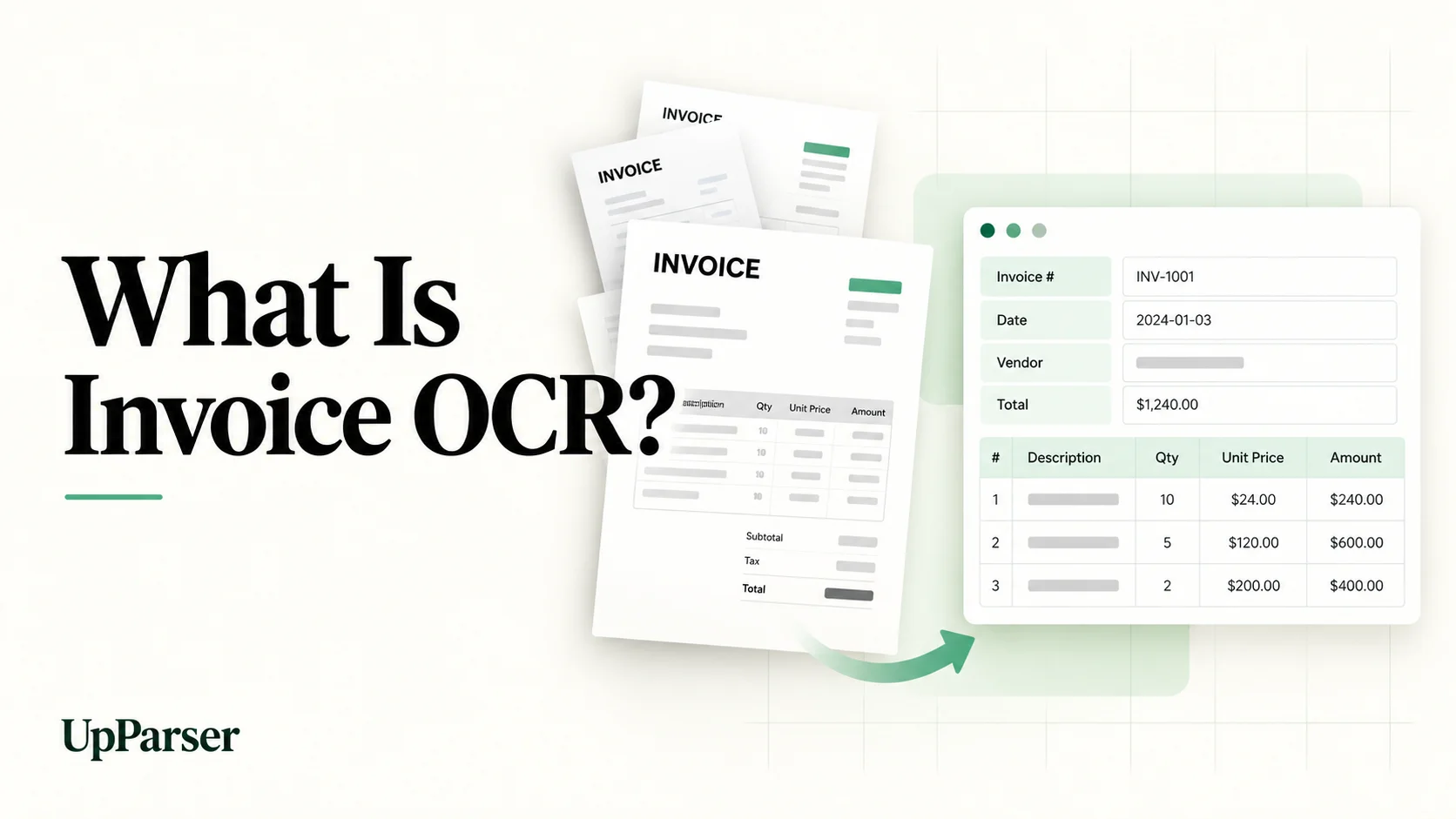
Quick answer: You can extract invoice data from a PDF in three practical ways: type it in manually, import readable PDF tables with Excel, or use AI extraction to turn the document into named fields and line items. Manual entry works for a handful of invoices. Excel import works for readable digital PDFs with clean tables. AI extraction is the better test when layouts vary, scans are common, or you need fields such as supplier, dates, and totals alongside item rows. Whichever you choose, run the same invoices through each method, request the same fields, and count the review and cleanup work, not just how fast the first result appears.
This guide explains all three methods and walks through AI extraction with UpParser. It compares workflows and review requirements rather than presenting a timed benchmark or a measured accuracy ranking.
What Most Guides on This Topic Skip
Guides that rank for this search usually list the same options (copy by hand, convert to a spreadsheet, run OCR, use a template parser, use AI) and rate each one as low, medium, or high effort. That is a fine overview. It leaves several practical questions unanswered:
- No shared test. The methods are described separately, so you cannot tell how they behave on the same invoice. Here, all three are applied to one batch and one field list.
- No test of field meaning. A value can be correctly read and still be the wrong field. An air waybill number is not an invoice number, and a customs value is not necessarily the amount payable. Most guides check whether text was captured, not whether it was labelled correctly.
- Blank versus wrong. A field that is absent from the invoice should stay empty. A field filled with a different value is an error. Guides rarely separate the two.
- Hidden cleanup. Results are usually shown after correction. If you do not record the first output, a perfect spreadsheet can hide how much manual work produced it.
- Excel in practice. Excel is often mentioned as an option but rarely walked through: what the connector imports, what stays behind, and what you still have to map yourself.
- The exported file. Dates, leading zeros, and column order can change on export. The check is often missing.
- Non-standard invoices. Many walkthroughs use a plain supplier invoice. Commercial and customs invoices carry shipment references and extra fields that change what "complete" means.
The sections below fill those gaps with a comparison you can repeat on your own PDFs.
Start with the Same PDFs and Field List
A fair comparison starts with one shared test batch. Use the same original files for all three methods, including:
- A clean digital PDF.
- A scanned invoice.
- An invoice with several item rows.
- An unfamiliar supplier layout.
- A multi-page invoice, if your business receives them.
Define the required output before starting:
| Field group | Information to extract |
|---|---|
| Supplier | Supplier name and other required supplier details |
| References | Invoice number, purchase order number, shipment reference |
| Dates | Invoice date and due date, where present |
| Amounts | Currency, subtotal, tax, grand total, balance due |
| Line items | Description, quantity, unit price, line amount |
| Additional fields | Any document-specific information your process needs |
Keep invoice-level fields in one table and repeating item rows in another, linked by a document identifier. This makes the results easier to compare.
Do not penalize a method for leaving a genuinely absent value blank. Do penalize it for assigning a different value to that field.
Manual, Excel, or AI: What Changes?
| Method | Main steps | Field completeness depends on | Required review work |
|---|---|---|---|
| Manual entry | Read the PDF, type or copy values, build item rows | The operator finding and recording every requested value | Check typing, omitted rows, and field meanings |
| Excel PDF import | Import detected tables, transform columns, load a worksheet | What the connector detects and what you map into the target structure | Check missing main invoice details, split descriptions, and shifted cells |
| AI extraction | Upload, define fields, review, refine, export | Document readability, descriptions of the information you need, and the extraction result | Verify meanings, missing values, item rows, and adjustments |
These are workflow differences. Actual completeness and review time need to be recorded on your own batch.
Method 1: Extract Invoice Data Manually
Manual entry is a practical starting point when you have a small number of invoices and can read every document clearly.
- Open the PDF beside your spreadsheet.
- Create columns for the agreed fields.
- Type the header values or copy them from selectable PDF text.
- Enter each line item on its own row.
- Compare the finished worksheet with the original.
Preserve invoice and reference numbers as text so leading zeros remain intact. Keep currency separate from numeric amounts when your spreadsheet needs calculations.
The main review task is transcription: a missing decimal point, an omitted item, or a date entered in the wrong format. Copy-and-paste also needs checking because PDF reading order can place values in the wrong sequence.
Manual entry can handle an unusual layout without building a new import rule, but someone must find and verify the fields on every document.
Method 2: Import PDF Invoice Tables into Excel
If your Excel installation includes the PDF connector, you can import detected tables instead of rebuilding every row manually.
- Select Data → Get Data → From File → From PDF.
- Choose the invoice PDF.
- In Navigator, inspect the available tables or pages.
- Select Transform Data to clean the imported structure, or Load to place it in a worksheet.
- Map the result to the same field list used for manual entry.
Connector availability depends on your Excel version and platform. Microsoft's PDF connector documentation explains selection and transformation, and its Excel data-source availability guide lists version differences.
Inspect the imported rows before using them. A goods table may come through while supplier details above it still need separate mapping. Check wrapped descriptions, repeated page headers, merged cells, and totals mixed into item rows.
Treat readable digital PDFs as the starting case. If an image-only scan produces no usable data, add an OCR step or use an extraction tool that accepts scans. Record that extra work in your comparison.
Method 3: Use AI for PDF Invoice Data Extraction with UpParser
Use the same invoices you tested manually and in Excel, so you can compare both the result and the cleanup work.
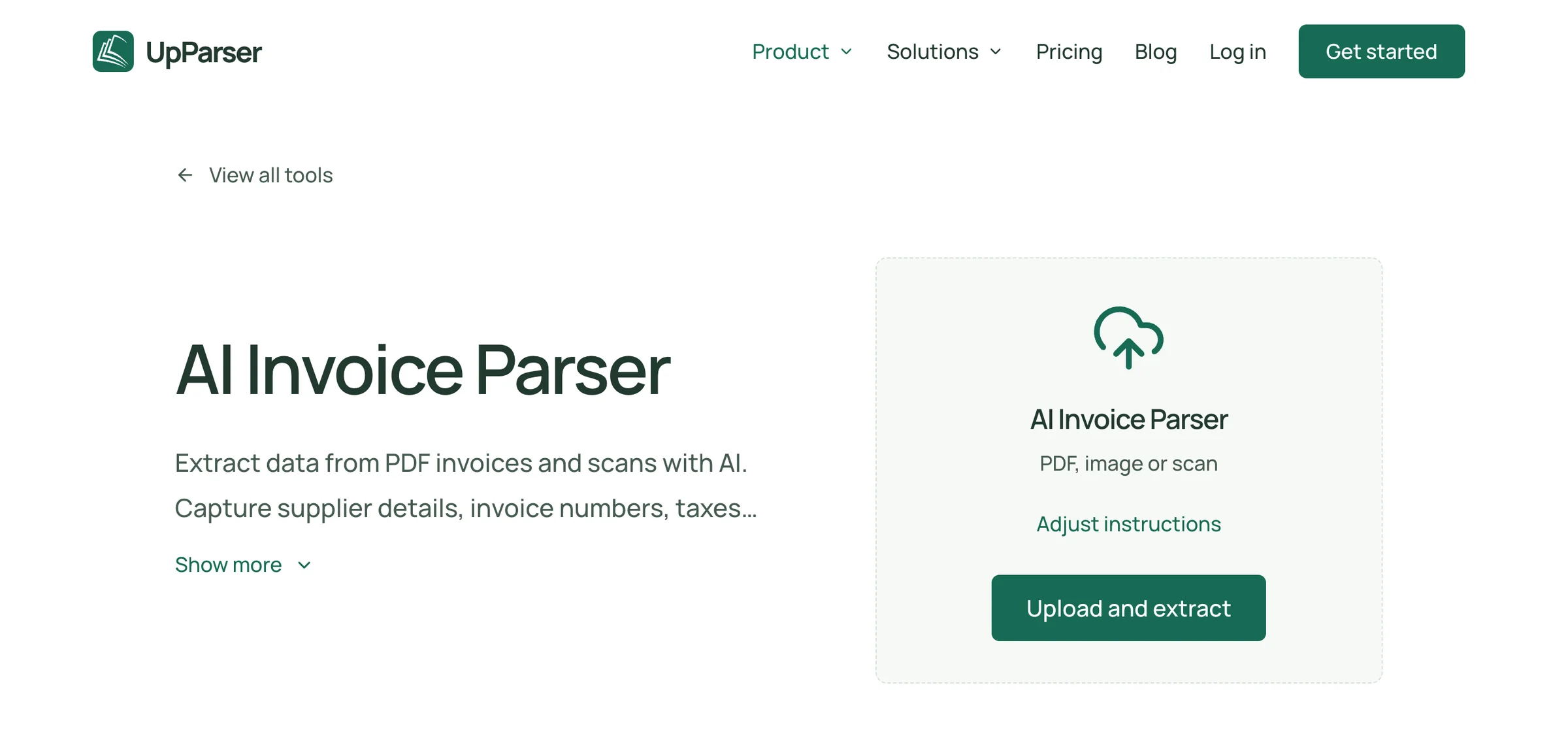
Step 1: Open the Invoice Parser
Open UpParser's Invoice Parser. You can use the preset. To change it, click Adjust instructions and say:
Get the supplier, invoice number, date, currency, tax, total, and product list. Keep shipment references separate from invoice numbers. Leave missing details blank.
Step 2: Upload the Same PDF
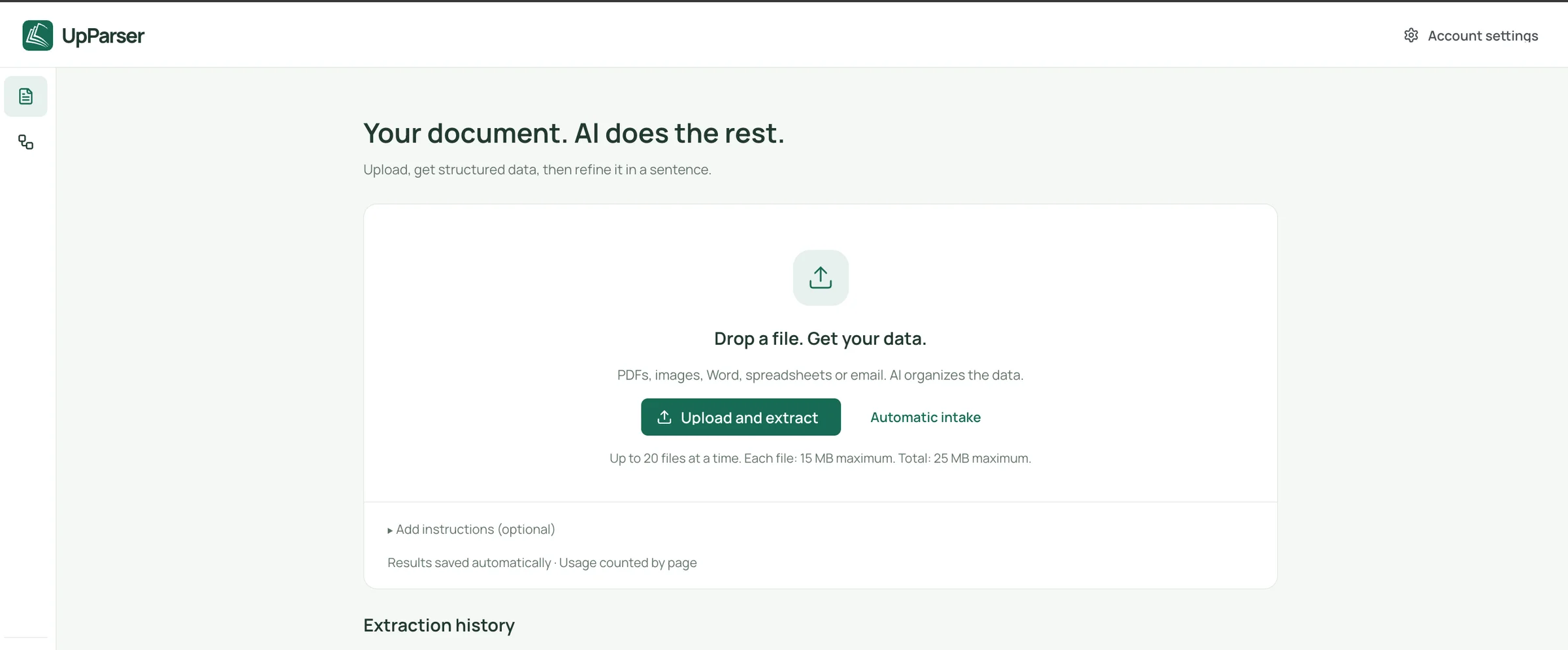
Click Upload and extract, choose your file, and sign in if asked. Follow the limits displayed on the current upload screen.
Step 3: Wait for Processing
Wait for your result. Note any file that needs another attempt so you include that work in the comparison.

Step 4: Check Beside the Original
Check the supplier, reference number, date, currency, total, and product rows. Count the products and check their quantities and amounts.
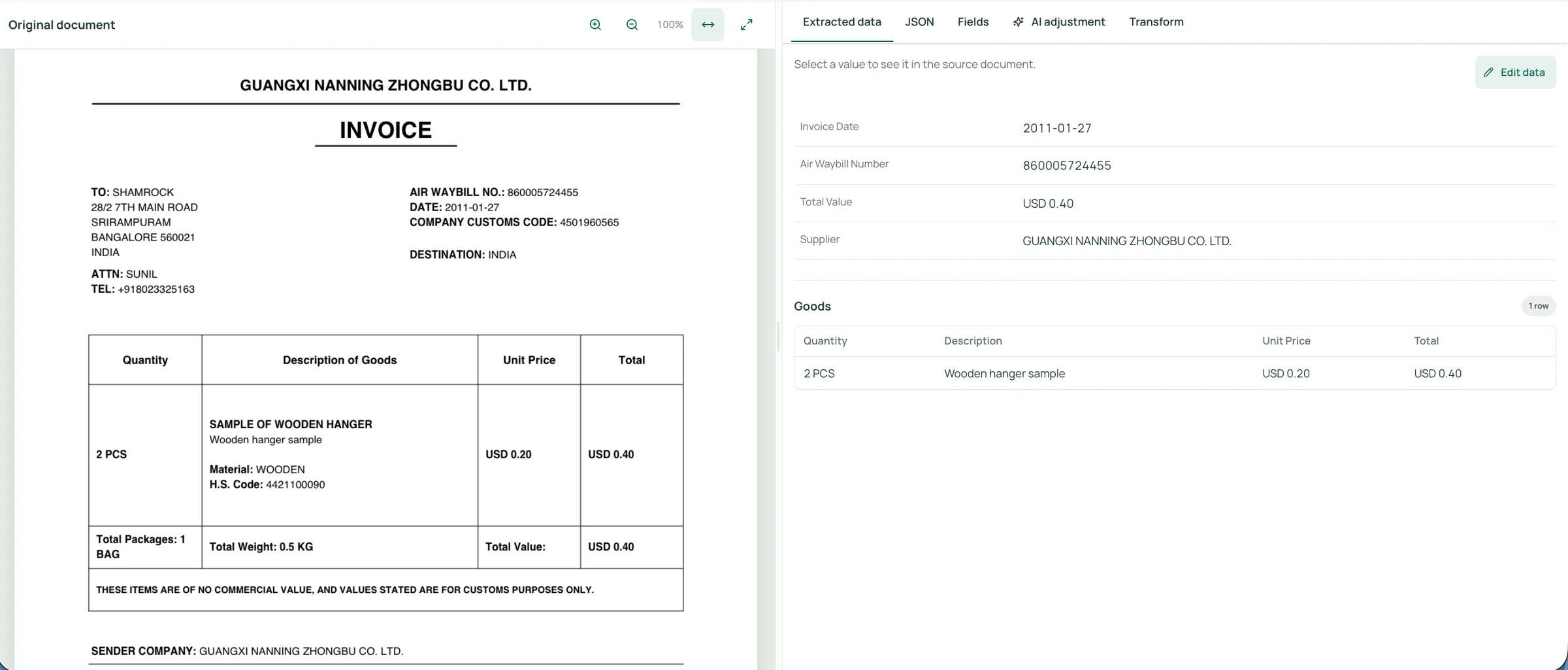
The sample has a wooden hanger: 2 PCS × USD 0.20 = USD 0.40. Its airwaybill number is a shipment reference, and its total value is for customs purposes. Keep those meanings rather than calling them an invoice number or a payment balance.
Step 5: Fix or Add a Detail
Use Edit data for a correction. Use AI adjustment for a short request such as “Also include the destination country and H.S. code.” Check the preview against the source.
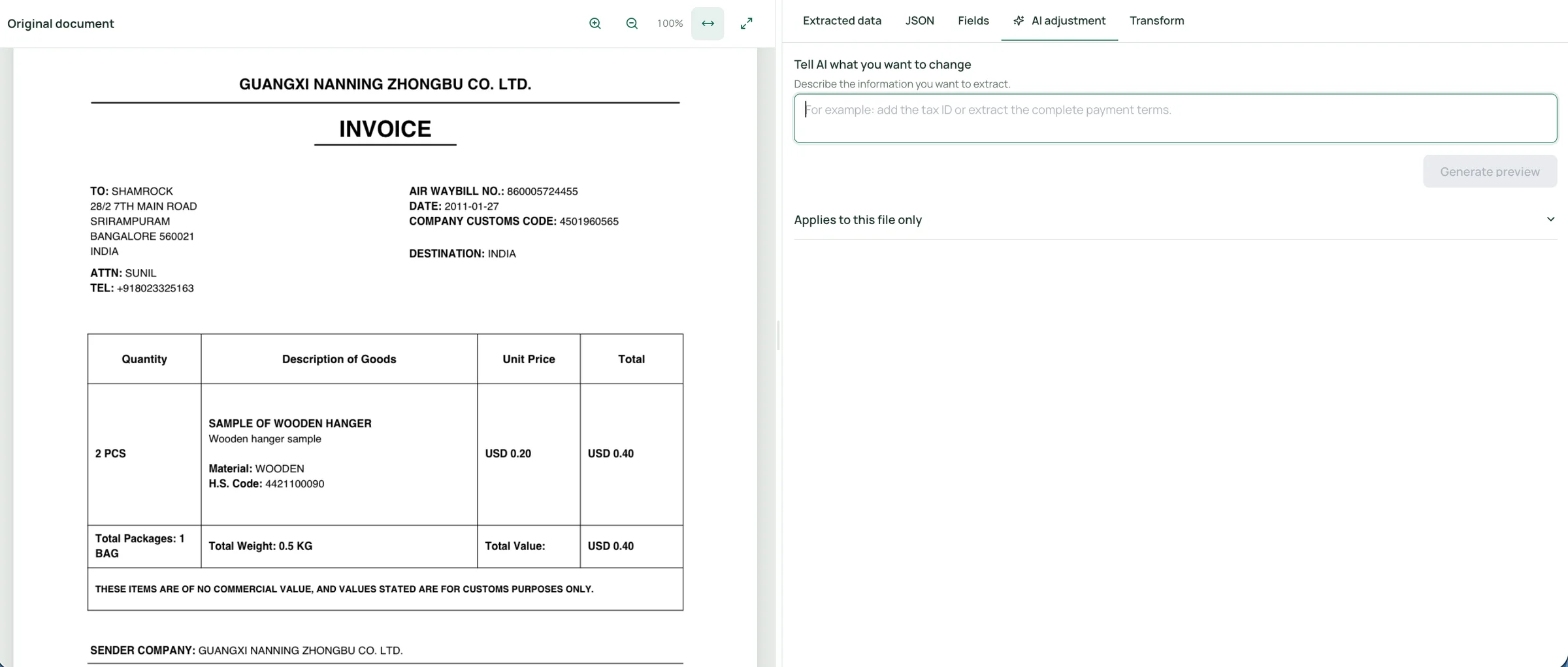
In the supplied screen, adjustments apply to this file. Do not assume they change every future upload.
Step 6: Download and Compare
Click Download, choose Excel or CSV, and confirm. Open the file and check references, dates, amounts, and the product list.
Record any corrections and cleanup time, just as you did for the manual and Excel methods.
Compare the Same Batch Without Hiding the Cleanup
Keep each method's initial output before making corrections. Then record the same measures for all three methods:
| Measure | What to record |
|---|---|
| Field coverage | Requested fields present in the PDF that appear in the output |
| Field correctness | Values matching both the source and the intended meaning |
| Item completeness | Missing, duplicated, merged, or shifted line-item rows |
| Review work | Checks, edits, remapping, and repeated extraction attempts |
| Time to usable output | Setup, entry or processing, review, correction, and export cleanup |
Record absent source fields separately. A populated field can still be wrong, while a blank field can be correct when the invoice does not contain that information.
For the example invoice above, apply the same checks to each method:
| Check | Manual entry | Excel import | UpParser AI extraction |
|---|---|---|---|
| Supplier and date | Enter and verify against the PDF | Locate imported values or add separate mappings | Verify the displayed fields |
| Shipment reference | Enter under the correct label | Keep the label attached during transformation | Confirm Air Waybill Number remains separate |
| Goods description | Decide whether to record the full description | Check whether wrapped text was preserved | Check whether additional description details are needed |
| Quantity and prices | Enter values and units carefully | Check columns and number formats | Compare extracted rows with the source |
| Additional customs fields | Add them to the worksheet | Locate and map them if available | Request them through extraction instructions |
| Final file | Check the completed spreadsheet | Check the loaded worksheet | Check the exported file |
This table compares the work involved. The example demonstrates one document and its visible AI output; it does not establish a batch-wide accuracy rate or a measured speed advantage over manual entry or Excel.
Which Method Should You Choose?
| Your situation | Method to test first |
|---|---|
| A few invoices now and then, mixed layouts | Manual entry |
| Readable digital PDFs with clean tables, and you can maintain transformation steps | Excel import |
| Varied supplier layouts, scans or photos, or named fields needed alongside item tables | AI extraction |
| Recurring volume | AI extraction with a clear review step, compared against your current process |
For recurring work, automated invoice data extraction should reduce repeated entry while keeping a clear review step. It does not remove the need to check field meaning, completeness, and the exported file.
Frequently Asked Questions
What is the best way to extract data from a PDF invoice?
It depends on volume and layout variety. Manual entry suits occasional invoices, Excel import suits readable tables, and AI extraction suits varied layouts and scans. Test each on the same batch and compare review work, not only first-pass speed.
Can I extract invoice data from a scanned PDF?
Yes, with a tool that can read document images. Check the result carefully, especially small numbers, decimal points, and item rows. A basic PDF table import may not produce usable data from an image-only scan.
How do I extract line items from a PDF invoice?
Request item rows explicitly (description, quantity, unit price, line total) and compare the row count and each value with the source. Watch for wrapped descriptions, repeated page headers, and rows that are merged or shifted across pages.
Is Excel import the same as invoice data extraction?
Excel can import detected PDF tables. Mapping those tables and other document content into supplier, date, tax, and item fields may require additional transformation and review.
Can AI extract every field automatically?
Do not assume so. Define the fields you need and check whether each is present and correct. The example above shows a useful first result, while other source details would need additional extraction instructions.
Does changing one result train future extractions?
The AI adjustment panel is explicitly scoped to one file. Reusable workflows are a separate part of the product; verify their setup before relying on changes for future batches.
Try AI Extraction on Your Own PDF Invoices
Upload a representative invoice, define the fields your spreadsheet needs, and review the result beside the original. Refine missing details, export the data, and compare the total review work with your current process.
About the Author
Dylan Dan is a document parsing and data processing specialist with years of hands-on experience. He helps readers extract, organize, and check data from invoices, bank statements, receipts, and other documents, turning document content into structured data that is easier to use.