 UpParser
How to Extract Vendor Invoices into an Accounts Payable Spreadsheet
Turn supplier invoices into an Excel or CSV payment tracker with reviewed fields, due-date checks, and duplicate warnings.
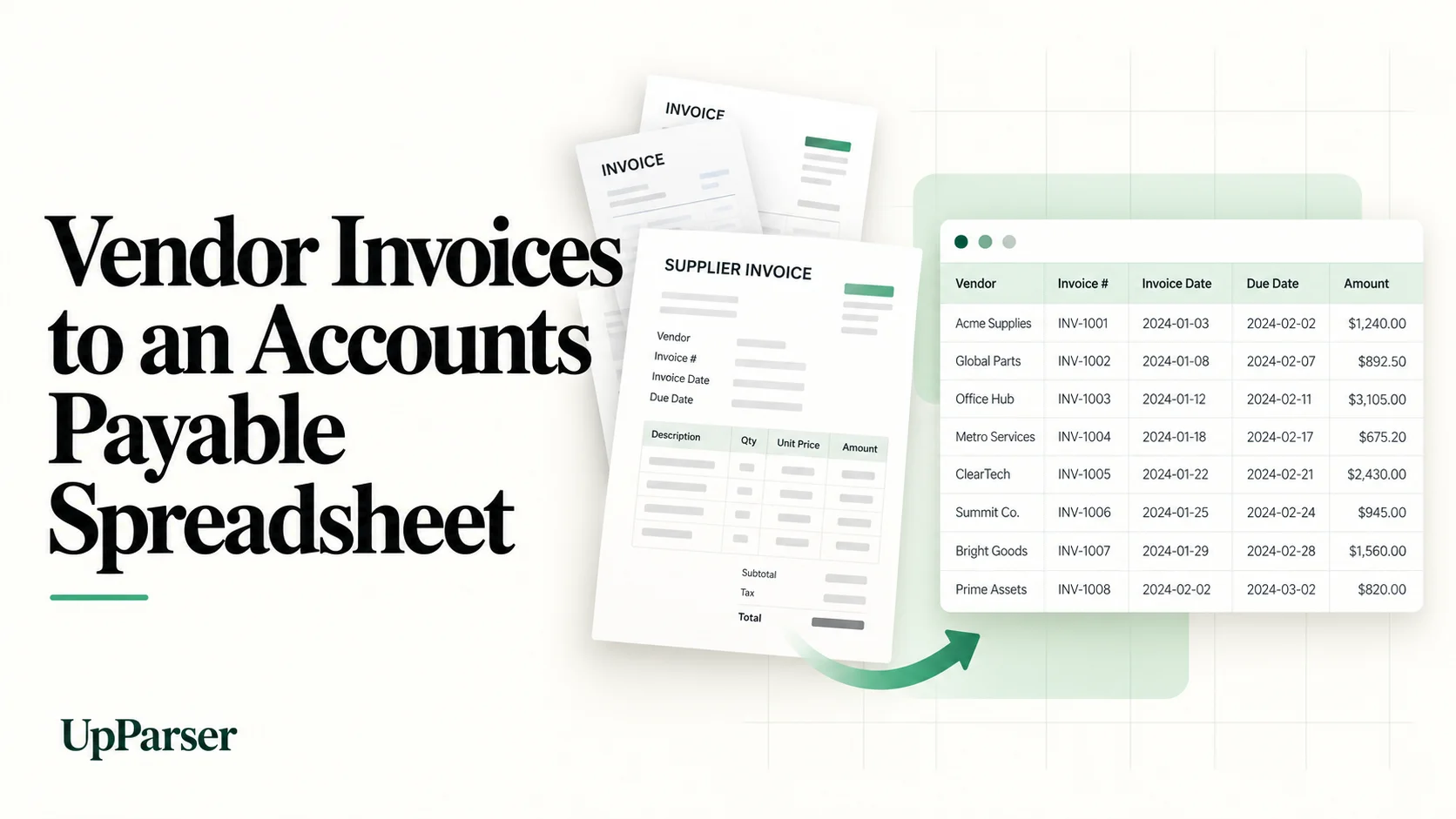
Quick answer: To turn vendor invoices into an accounts payable spreadsheet, gather your PDFs, scans, and email attachments in one place, use OCR to capture four key fields (vendor, invoice number, due date, and amount), export the results to Excel or CSV, check them against the source files, and sort by due date to plan payments. This is the data-capture step of accounts payable invoice processing, and it is the step most worth automating. Tools like UpParser extract these fields for you, so your payment data is ready without retyping.
Capture vs. Full Accounts Payable Invoice Processing
Accounts payable invoice processing is the full workflow of receiving, validating, coding, approving, matching, and paying supplier invoices. Data capture is only the first stage, but it feeds everything after it.
| Stage | What happens |
|---|---|
| Receive | Invoices arrive by email, portal, or paper |
| Capture | Vendor, invoice number, due date, and amount are extracted into structured data |
| Validate | Check for duplicates, wrong amounts, unknown vendors |
| Code and approve | Assign accounts, route for approval |
| Match | Compare to purchase orders or receipts, where you use them |
| Pay | Schedule by due date, record payment |
This guide covers the capture stage and how to organize its output in a spreadsheet. If your capture is accurate, every later stage gets easier.
Why Manual Invoice Entry Breaks Down
Vendors send invoices as native PDFs, scans, phone photos, and email bodies, and no two layouts are alike. Retyping them causes:
- Typos in amounts and invoice numbers, leading to wrong or duplicate payments.
- Missed due dates, leading to late fees and strained vendor relationships.
- A slow month-end close, because staff time goes to data entry instead of review.
Three Ways to Get Invoice Data into a Spreadsheet
| Manual entry | Generic PDF-to-Excel converter | AP OCR software | |
|---|---|---|---|
| How it works | Someone types each field | Converts the whole PDF into cells | Identifies specific fields and outputs one clean row |
| Output | Depends on the person | Often messy, with text scattered across cells | Structured columns ready to use |
| Varied layouts | Handled by a person, one at a time | Layout changes break the output | Handled automatically |
| Scales to volume | No | Poorly, because cleanup is manual | Yes |
A layout-focused PDF converter may preserve cells without identifying business fields such as invoice number and amount due. Some converters also include semantic extraction, so compare actual outputs rather than product labels. That is the difference between converting a document and extracting data.
How OCR for Accounts Payable Works
Basic OCR turns an image of text into machine-readable text. OCR for accounts payable adds field recognition on top, so the software knows what each piece of text means.
- Template-based OCR maps fixed positions on a known layout. It works for invoices that always look the same, but fails when a vendor changes its format, and every new vendor needs a new template.
- AI-based OCR reads the document by context, so “Due Date,” “Payment Due,” and “Pay By” can all land in the same column, even across layouts it has not seen before.
For a business with many vendors, the AI approach saves the most setup work. When evaluating accounts payable OCR software, ask which approach it uses.
What OCR Does Not Fix
OCR is a strong first pass, not a guarantee. Plan for these limits:
- Poor source quality. Blurry photos, skewed scans, and handwritten notes reduce accuracy. Scan at a reasonable resolution and keep originals clean.
- Ambiguous fields. An invoice may show several dates or totals (subtotal, tax, amount due). Spot-check which one was captured.
- Data security. Invoices contain vendor and bank details. Before uploading, check how the provider stores, retains, and uses your documents.
- Duplicates. OCR reads each file on its own, so duplicate detection is something you build into your spreadsheet (see below).
Build Your AP Spreadsheet
Step 1: Create a Simple Table
Start with these columns in Excel:
| Column | What it tells you |
|---|---|
| Supplier | Who you need to pay |
| Invoice number | Which invoice the row belongs to |
| Invoice date | When it was issued |
| Due date | When payment is due |
| Amount due and currency | How much remains to pay |
| Status | Open, needs review, partly paid, or paid |
| Source file | Where to find the original |
You can fill in status yourself. No formulas are needed to start.
Step 2: Upload to UpParser
Open the Invoice Parser, click Upload and extract, and select an invoice. Sign in if asked. Use the preset or add: “Get the supplier, invoice number, invoice date, due date, currency, invoice total, and amount due. Keep total and amount due separate.”
Step 3: Check and Download
Compare the result with the source. Check the supplier, reference, due date, currency, and amounts. Use Edit data to fix a value. Click Download, choose Excel or CSV, and open the file.
Step 4: Add Reviewed Rows to Your Tracker
Use one row per invoice. Keep invoice numbers as text and leave uncertain values for review. Keep payment updates separate from extracted information: the PDF may not show a later payment.
Sort by due date to see what needs attention. Check repeated supplier-and-invoice-number combinations before paying. Mark an invoice paid only after confirming full settlement; use partly paid when money is still outstanding.
One Row per Invoice or One Row per Line Item?
For payment management, use one row per invoice. You need to know what you owe, to whom, and by when. Use one row per line item only when you need spend analysis by product or category, or when you match line by line against purchase orders. Mixing the two in one sheet makes totals unreliable, so keep line-item detail in a separate sheet.
Tips for Cleaner AP Data
- Use one date format throughout, such as YYYY-MM-DD.
- Standardize vendor names before you analyze anything.
- Check currency and tax fields on international invoices.
- Process on a schedule, for example weekly, so due dates never sneak up on you.
- Audit a sample regularly. Check a few extracted rows against the source each cycle to catch drift early.
What to Look for in Accounts Payable OCR Software
- Reliable extraction of vendor, invoice number, due date, and amount across different layouts
- Support for PDFs, scans, and images
- Export to Excel or CSV
- Batch processing, not just one file at a time
- A way to review results before they reach your books
- Clear data security and retention terms
Frequently Asked Questions
What is accounts payable invoice processing?
It is the workflow of receiving vendor invoices, capturing their data, validating, approving, matching, and paying them. Data capture is the step that most benefits from automation.
What is the difference between invoice capture and invoice processing?
Capture is extracting data from the invoice document. Processing is the whole workflow, including coding, approval, matching, and payment. Accurate capture makes the rest faster.
What is OCR for accounts payable?
It is technology that reads invoice documents and extracts structured fields such as vendor, invoice number, due date, and amount, so you do not have to type them.
Why not just use a PDF-to-Excel converter?
A layout-focused converter may require manual field selection and cleanup. Some tools combine conversion with field extraction; test whether the output matches the columns you need. AP OCR software outputs the specific fields you need in structured columns.
Can accounts payable OCR software read scanned invoices and phone photos?
Most can read scans and images as well as digital PDFs, but cleaner files give better results. Blurry, skewed, or handwritten documents are the most error-prone.
Which fields should I extract first?
Vendor name, invoice number, due date, and total amount. Together they show what you owe, to whom, and by when.
Is OCR accurate enough to skip review?
OCR greatly reduces typing errors, but a quick check of amounts and due dates before payment is still good practice.
How do I avoid duplicate payments?
Keep invoice numbers in a dedicated column and compare supplier names and invoice numbers, then check the original before paying a repeated entry.
Should I use one row per invoice or per line item?
Use one row per invoice for payment tracking. Keep line-item detail in a separate sheet if you need it.
Can I export the results to Excel?
Yes. Extracted data is typically exported to Excel or CSV for sorting, filtering, and import into accounting or payment tools.
Build your AP spreadsheet from reviewed invoice data
Open the Invoice to Excel tool to extract supplier details, invoice numbers, dates, tax, totals, and line items. Review the values before using them in your AP tracker. Keep payment status, duplicate decisions, and approvals in your spreadsheet or accounting system.
Open the Invoice Parser, upload a file, check it beside the original, and download Excel or CSV. Save a setup that works for similar documents.
UpParser's homepage offers 20 free pages each month. Check current pricing and limits before planning a larger test.
About the Author
Dylan Dan is a document parsing and data processing specialist with years of hands-on experience. He helps readers extract, organize, and check data from invoices, bank statements, receipts, and other documents, turning document content into structured data that is easier to use.