 UpParser
Common Invoice OCR Errors and How to Fix Them
Diagnose wrong invoice totals, dates, decimal points, and missing line items. Improve source quality, field definitions, validation, and review.
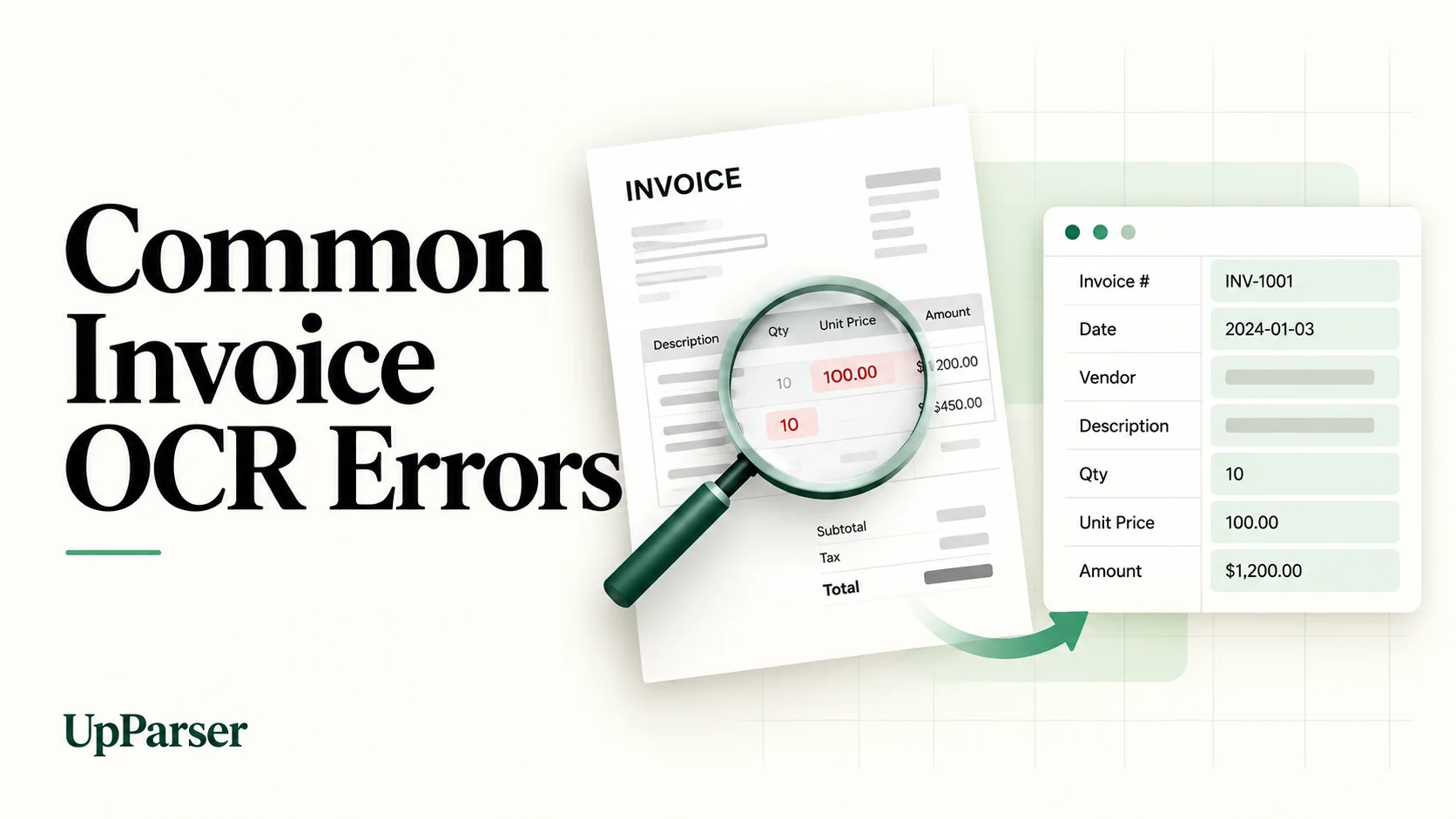
Quick answer: Most invoice OCR errors come from four causes: poor image quality, unusual vendor layouts, ambiguous fields (several amounts or dates that look alike), and table extraction mistakes. To fix them, work in three layers. First, improve the source: use clean, high-resolution, upright scans and digital PDFs wherever possible. Second, make your descriptions of the information you need specific, for example "grand total after tax" instead of "total". Third, validate after extraction: check that line items add up to the subtotal, that subtotal reconciles to the total after tax and applicable adjustments, and that dates and invoice numbers have a plausible format. Send anything that fails to a person who can compare the value with the original document, correct it, and reuse the fix for similar invoices.
What counts as an invoice OCR error?
Not every error is equally dangerous. It helps to separate two kinds:
- Document-level failures: the file is unreadable, a page is missing, or nothing useful is extracted. These are easy to notice because the invoice gets stuck.
- Field-level errors: the invoice moves forward, but one value is wrong, such as a shifted tax amount, a total taken from the wrong place, or a date in the wrong column. These are more dangerous because the invoice looks fine at a glance.
Field-level errors are the main reason invoice OCR needs checks and review, even when overall results look good.
Why invoice OCR errors happen
1. Poor document quality. Skewed or crumpled scans, low resolution, shadows, fax-like noise and handwritten notes all reduce what the engine can read.
2. Unusual layouts. Information appears in unexpected places, such as a VAT number at the bottom of the page or totals in a footer table. Heavy graphics and dense designs make it harder to tell labels from values.
3. Ambiguous fields. An invoice often carries several dates (issue, delivery, due) and several amounts (subtotal, tax, shipping, discount, advance payment, total, balance due). The value can be perfectly legible and still be the wrong one.
4. Language and format differences. Currency symbols, date formats (03/04/26 can be March 4 or April 3) and decimal conventions (1,234.56 versus 1.234,56) differ between countries and between vendors.
5. Table structure. Line items live in tables, and tables are where OCR most often loses structure: merged cells, multi-line descriptions, inconsistent columns and tables that continue across pages.
Symptom-based diagnostic guide
Use this table to match what you see in your output to the most likely cause and fix.
| Symptom in output | Most likely cause | Fix |
|---|---|---|
| Requested grand total is replaced by the subtotal or balance due | Ambiguous field label or definition | Define the field precisely (see below) and add a math check |
| Amount is 100 times too large or too small (for example 154.99 becomes 15499) | Decimal point lost to low resolution, compression or a comma/period mix-up | Improve image quality, specify the number format, validate against line items |
| Letters and digits swapped (O/0, I/1, S/5, B/8) | Character confusion in the OCR engine | Apply field-type rules (numeric-only for amounts) and format checks |
| Issue date and due date swapped, or day and month reversed | Several dates on the page, or a regional date format | Name each date field explicitly, set the expected format, check that due date is not before issue date |
| Invoice number has extra characters, missing hyphens or a wrong prefix | Short alphanumeric strings are fragile, and vendor-specific formats vary | Define the expected pattern per vendor, check against past numbers, check uncertain results |
| Vendor name slightly wrong or different between invoices | Logos, stylized fonts, multiple company names (seller, bill-to, remit-to) | Match against your vendor list, define which party you want |
| Line item row missing, duplicated or shifted | Table structure lost, often at page breaks or at the last row | Sum line totals and compare with the subtotal, then review the table |
| Quantity × unit price does not equal line total | Cross-row pairing, discounts, or mixed tax-inclusive and tax-exclusive lines | Check the math per row, and note the invoice's tax convention |
| Tax field blank or wrong | Small print, multiple tax rates, reverse-charge notes | Define tax fields explicitly, check subtotal × rate against tax amount |
| Same invoice processed twice | No duplicate check | Flag the same supplier plus invoice number combination |
Fixing the most common error: the wrong total
A wrong total is a high-impact extraction problem. Three common causes are:
The label is ambiguous. If you ask for "Total", the system has to choose among subtotal, tax, shipping, discount and the final amount. Use clear names:
- "Subtotal (before tax)"
- "Tax amount"
- "Grand total (after tax)"
- "Amount due (after payments and credits)"
The layout is unusual. The total may sit in a footer table, be labeled "Amount Due" or "Balance", or appear on the last page only. Check whether the missing or wrong value is on a different page than the rest of the invoice data.
A near-duplicate value is chosen. On a single-line invoice, subtotal and total can be the same number. A wrong pick then looks right. Arithmetic checks help, but they cannot distinguish two equal amounts with different meanings. Verify the field label and source context as well.
Whatever the cause, add the same safety net:
- Sum the line item totals and compare them with the subtotal.
- Check that subtotal plus tax (minus discounts, plus shipping) equals the grand total.
- If the check fails, route the invoice to review instead of guessing.
Layer 1: Fix the source
The cheapest fixes happen before OCR runs.
- Prefer digital PDFs over scans or photos. Text embedded in a PDF is far more reliable than text recovered from pixels.
- Scan at a reasonable resolution. Higher-resolution scans OCR better; around 300 DPI is a common rule of thumb for text documents.
- Keep pages flat and upright. Avoid shadows, folds and cropped edges, and scan in color or grayscale instead of aggressive black and white.
- Avoid heavy compression. Strong JPEG compression can erase small marks such as decimal points and commas.
- Send the full document. Make sure every page is included, since totals are often on the last page.
- Ask vendors for e-invoices where you can. Structured or digital-native files reduce the guesswork.
Layer 2: Fix the extraction setup
Open UpParser's Invoice Parser and use the preset. If the same mistake keeps appearing, click Adjust instructions before uploading or use AI adjustment after seeing the result.
Use a short, specific request:
- “Keep the invoice total separate from the amount due.”
- “Use the seller as the supplier, not the customer.”
- “Include the full product description and all pages.”
- “Keep invoice references as printed, including zeros and hyphens.”
Check the changed result against the source. A correction to one file does not automatically fix every future invoice.
Layer 3: Fix after extraction with validation
You can make these checks without code:
- Compare the supplier, invoice number, dates, currency, tax, and total with the original.
- Count the product rows and check their quantities and amounts.
- Compare the item amounts with the subtotal, allowing for discounts and other charges.
- Check the grand total after tax, delivery, credits, and rounding.
- Look for repeated supplier-and-invoice-number combinations in your spreadsheet.
If something does not match, use Edit data or get a clearer source. A failed sum does not tell you which value is wrong, and a matching sum does not prove the whole invoice is correct.
When the result is ready, click Download, choose Excel or CSV, and check the file before using it.
A note on confidence scores
Some extraction services show a confidence score. Treat it as a hint about where to look, not proof that an amount is correct. This guide does not establish that UpParser exposes that score. Always compare important values with the original.
Make Review Easier
Start by checking every invoice while you test the setup. Keep a simple Needs review note for unreadable amounts, missing rows, or mismatched totals.
Once you know which documents work well, your team can decide how much review each type needs. Keep uncertain invoices for a person to check against the original. Save useful instructions and test them on another file before reusing them.
Measure your errors
You cannot improve what you do not track. Keep a simple error log for a few weeks:
| Date | Vendor | Field | Extracted | Correct | Error type | Fix applied |
|---|---|---|---|---|---|---|
| 2026-10-05 | Acme Ltd | Invoice number | 141762- | I-41762 | Extra characters | Added vendor pattern rule |
Then look for patterns:
- Which fields fail most often?
- Which vendors repeat the same error?
- Which document types (scans, photos, multi-page files) cause the most trouble?
- Which errors are caught by validation, and which reach a person only by chance?
Measure accuracy two ways: per field, and per document (the share of invoices with every required field correct). Document-level accuracy is the stricter number and the one that tells you how many invoices truly need no human touch.
Quick checklist to improve invoice OCR accuracy
- Use digital PDFs where possible; scan flat, upright and sharp otherwise
- Include every page of every invoice
- Define each field precisely, including tax treatment
- Set expected formats for dates, numbers and currency
- Validate line items, subtotal, tax and total after extraction
- Check for duplicates by supplier plus invoice number
- Set stricter review rules for total, tax, dates, invoice number and vendor
- Check uncertain results against the original document
- Log errors by field and vendor, and fix recurring ones at the source
- Reuse working setups for similar invoices
FAQ
What are the most common invoice OCR errors?
The most common are wrong totals, lost decimal points, swapped or misread dates, wrong invoice numbers, character confusions (such as O and 0), and missing or scrambled line items.
Why does my invoice OCR pick the wrong total?
Usually because the invoice has several similar amounts (subtotal, tax, shipping, balance due) and the field definition is vague, or because the total sits in an unusual place such as a footer table. Define the field precisely and add a check that subtotal reconciles to the total after tax and applicable adjustments.
How can I improve invoice OCR accuracy?
Work in three layers: improve the source files, define fields and formats clearly, and validate the output with arithmetic and format checks. Then check uncertain results and track errors by field and vendor.
Why are decimal points and currency symbols misread?
Small marks are easily lost to low resolution, compression or blur, and comma and period conventions differ between countries. A lost decimal point can inflate an amount by 100 times, so validate amounts against line items.
Why are invoice line items so hard to extract?
Line items are lists of structured rows, and tables can contain merged cells, multi-line descriptions and page breaks. A single missing or shifted row corrupts the whole table, so always compare the sum of line items with the subtotal.
Does a high confidence score mean the value is correct?
No. It depends on the provider: the score may refer to word recognition, field mapping, or extraction confidence. None guarantees the value is correct for your purpose. Combine confidence with checks.
Can OCR read handwritten invoices?
Some systems can, but handwriting is a known weak spot, and errors often look plausible, so check handwritten amounts against the original.
Do I need to fix the same errors again for every invoice?
Not if you save what works. Reusing a field setup that performs well for a vendor or document type avoids repeating the same correction.
How many invoices should I test before choosing a tool?
Start with a few real invoices, including your poorest scans and most unusual layouts, and compare accuracy field by field.
For further reading: Microsoft on evaluating document extraction and confidence and Amazon Textract input-quality recommendations.
Spot errors beside the source and correct the output
Use the Invoice Parser to define precise fields and review extracted values beside the original. Save a successful field setup for similar documents. Editing one result does not by itself establish automatic model retraining, duplicate detection, or accounting validation.
Open the Invoice Parser, upload a file, check it beside the original, and download Excel or CSV. Save a setup that works for similar documents.
UpParser's homepage offers 20 free pages each month. Check current pricing and limits before planning a larger test.
About the Author
Dylan Dan is a document parsing and data processing specialist with years of hands-on experience. He helps readers extract, organize, and check data from invoices, bank statements, receipts, and other documents, turning document content into structured data that is easier to use.