 UpParser
Best Invoice OCR Software: How to Test Your Invoices with UpParser
Learn how to evaluate invoice OCR software using your own invoices. Follow the UpParser tutorial for field setup, source review, exports, and first-pass scoring.
Quick answer: The best invoice OCR software is the one that gets your own invoices right on the first pass, keeps every line item on the correct row, lets you check each value against the original, and exports a file your spreadsheet or accounting system opens without cleanup. No ranking can tell you that in advance. To find out, run 5–10 of your real invoices through each tool, score the first extraction separately from the corrected one, and open the exported file before you decide. UpParser lets you run this test with 20 free pages per month.
This article does not rank vendors. It shows you how to run a test you can trust, using UpParser's Invoice Parser as the worked example.
What Most "Best Invoice OCR" Lists Leave Out
Search for this topic and you will find the same pattern: a numbered list of tools, a feature table, and a headline accuracy figure, often somewhere between 95% and 99%. These lists are useful for building a shortlist. They are much less useful for choosing, because they usually skip the things that decide whether a tool works for you:
- Where the accuracy number comes from. A figure like "99% accuracy" rarely says which invoices were tested, which fields were counted, or whether the result was measured before or after a person corrected it.
- Line items. Main invoice details (supplier, date, total) are easy to show off. Line-item tables with long descriptions, page breaks, and merged cells are where extraction most often goes wrong, and they are the part that matters for bookkeeping.
- Review effort. A tool that is 97% right but takes ten minutes to find the 3% can cost more than one that is 94% right and shows you the problem immediately.
- The exported file. A correct value on screen can still become a broken value in a spreadsheet: a dropped leading zero, a swapped date format, a shifted column.
- Your invoices. Vendor-curated samples are clean. Your suppliers send scans, phone photos, and layouts nobody has seen before.
That is the information gap this tutorial fills. Instead of another list, it gives you a repeatable test and a scorecard you can apply to any tool.
What Should Invoice OCR Software Do?
Basic OCR recognizes text. Invoice extraction organizes that text into named fields and table rows.
A usable result should distinguish the supplier from the customer, the invoice date from the due date, and the subtotal from the amount due. It should also preserve each item's description, quantity, unit price, and line total.
Use these questions when comparing tools:
| What to check | What to look for |
|---|---|
| Main invoice details | Correct supplier, invoice number, dates, currency, tax, and total |
| Line items | Correct row count and values, without merged or shifted rows |
| Field setup | A practical way to specify the fields and meanings you need |
| Review | Access to the original while checking and correcting results |
| Export | Files that open correctly in your spreadsheet or downstream tool |
| Repeatability | A saved setup that works on the next set of similar invoices |
Step 1: Prepare a Small, Representative Test Set
Start with five to ten invoices that reflect your normal workload. Include:
- A clean digital PDF.
- A scanned invoice.
- A phone photo.
- An invoice with several line items.
- An unfamiliar supplier layout.
- A multi-page invoice or credit note, if you regularly receive them.
Write down the correct values before testing. That gives you a reference when you assess the output.
A small sample helps identify obvious problems; it does not establish production accuracy. Before relying on a tool at scale, expand the test across your suppliers, layouts, and exceptions.
UpParser currently offers 20 free pages each month. Count PDF pages when planning your test: ten invoices can exceed twenty pages. Check the current pricing and usage rules before starting.
Step 2: Open UpParser
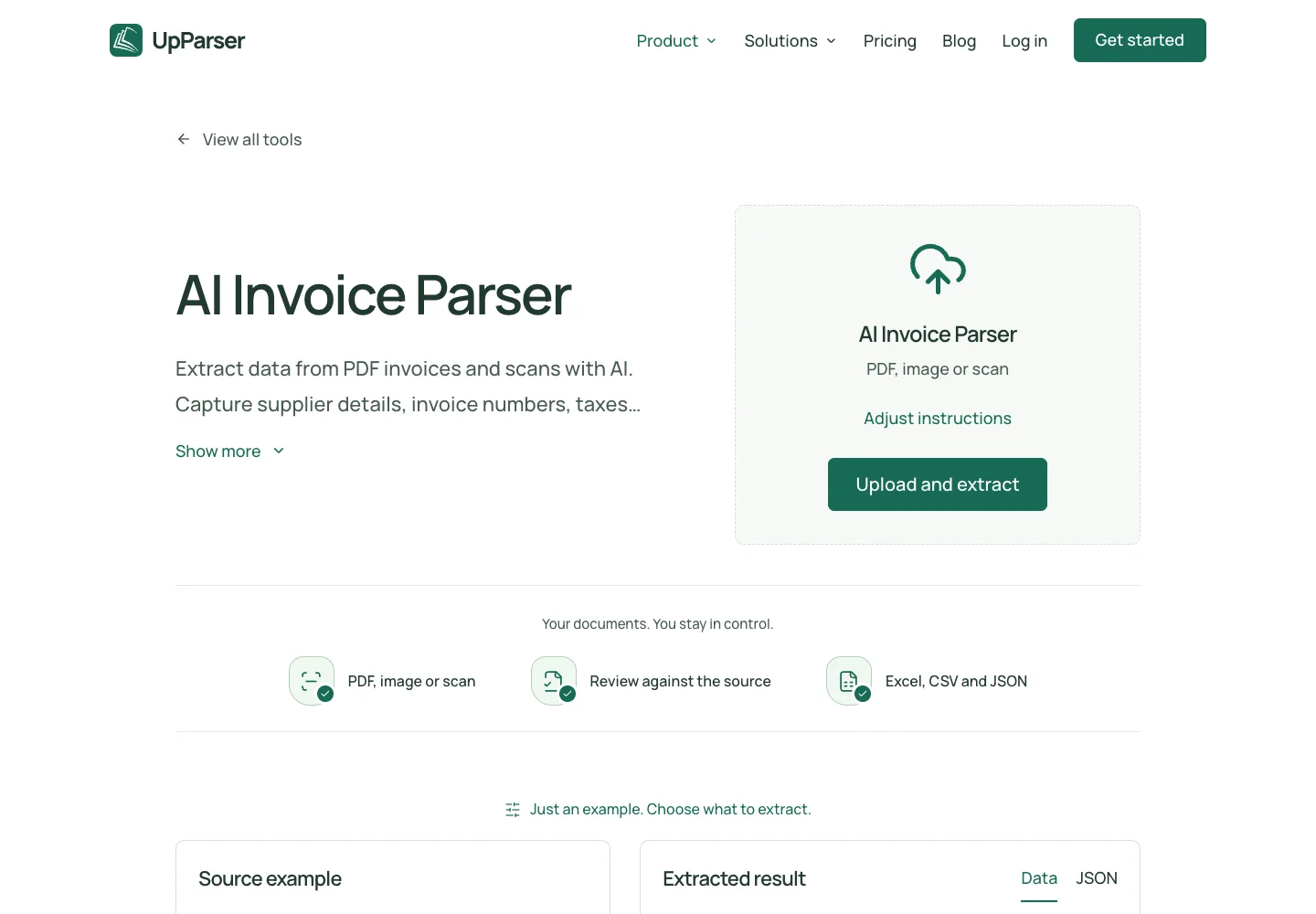
Go to the Invoice Parser. You can start with the preset. Use Adjust instructions only if you need to add or change something.
Step 3: Say What You Want
A short request is enough:
Get the supplier, invoice number, invoice date, currency, tax, total, and each product's description, quantity, unit price, and amount. Leave missing information blank.
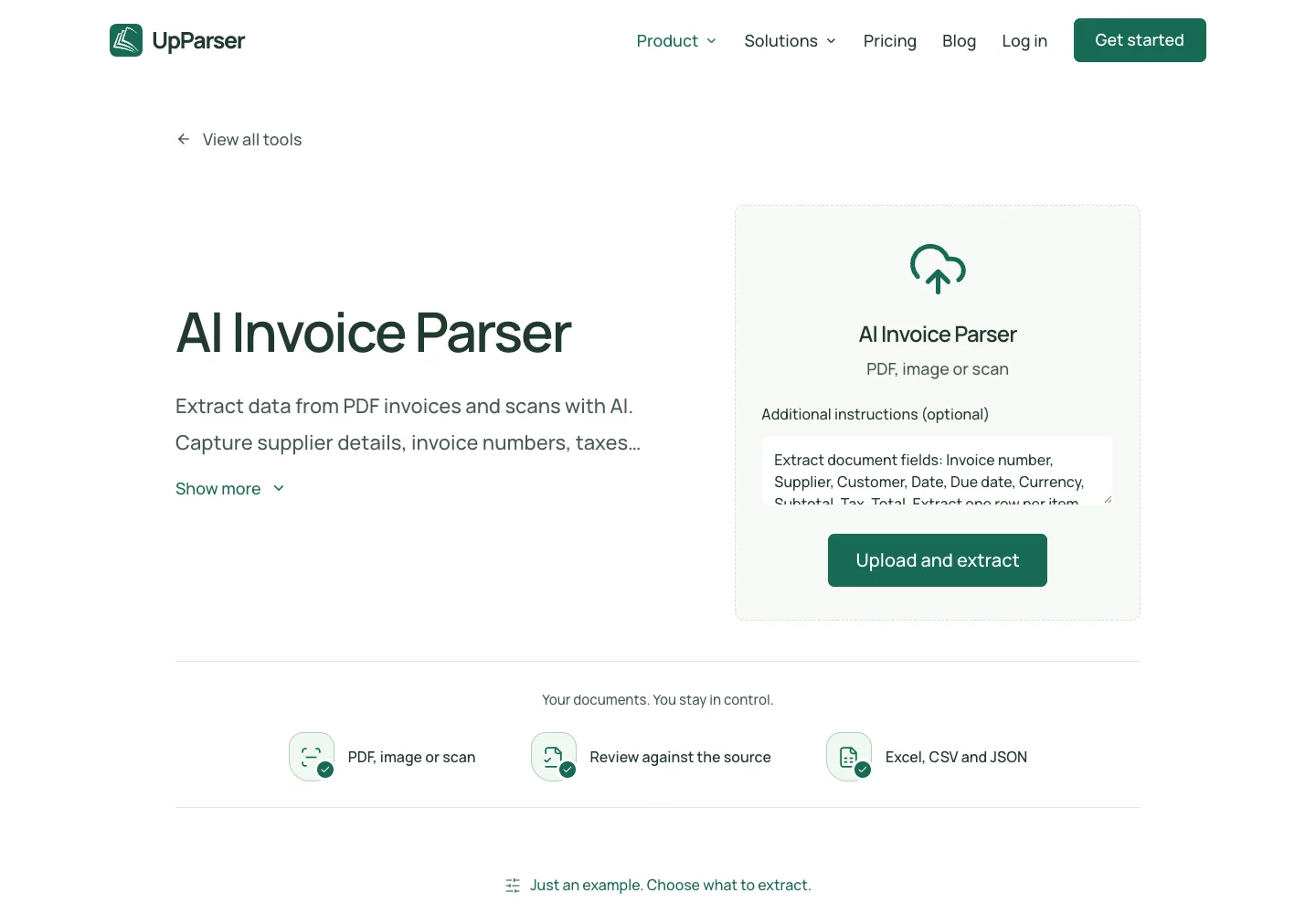
Use the same list when testing other tools so the comparison is fair.
Step 4: Upload Your Invoice
Click Upload and extract, choose the file, and sign in if asked. Check the upload limits shown on screen. Start with one invoice, then try several different layouts.
Step 5: Check the Result
Compare the extracted information with the original. Check the main amounts and each product row. Use Edit data to fix a value, or AI adjustment to describe a missing detail.
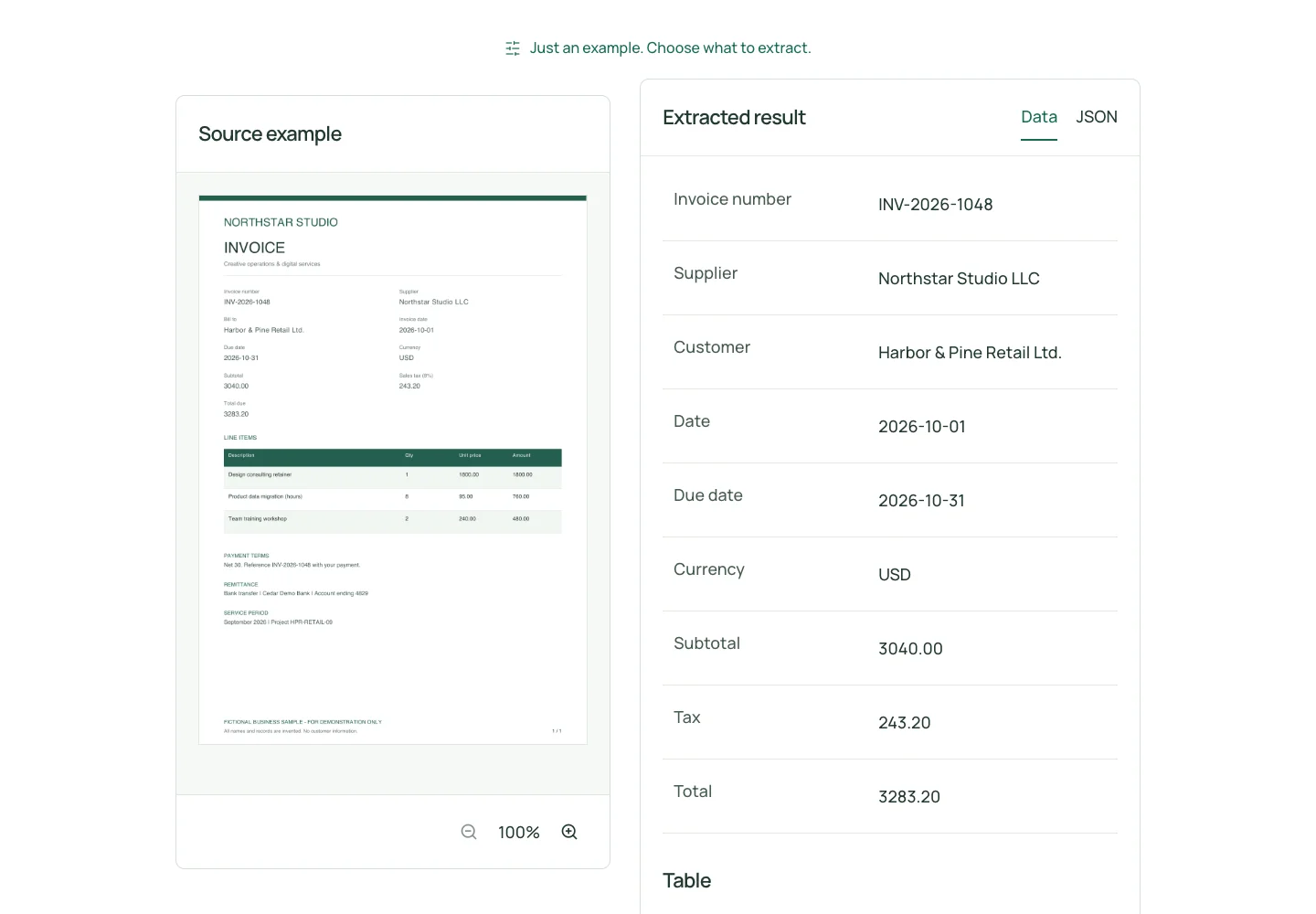
This public-page example illustrates the review layout. It is not a result from a test of all your invoices.
Step 6: Download and Open the File
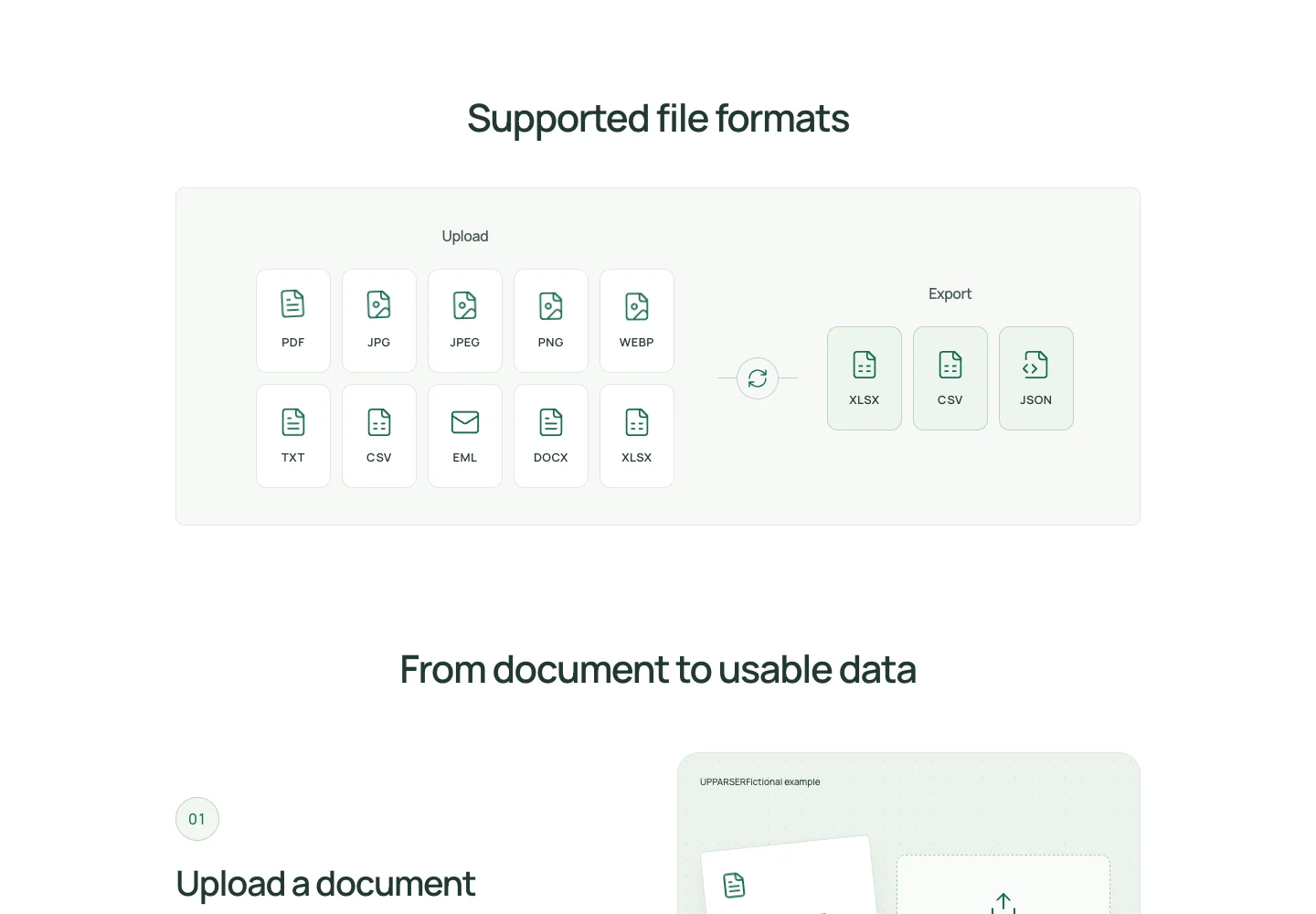
Click Download, choose Excel or CSV, and download. Open the file and check reference numbers, dates, totals, and product rows.
Check that amounts work as numbers in your spreadsheet, rather than text such as “USD 25.00.”
Step 7: Compare the Work You Had to Do
For each invoice, note whether the first result was correct, what you changed, and how long checking and cleanup took. Include missing rows as well as wrong values.
If a setup works well, save it as a workflow—a saved set of instructions for similar invoices. Test it on another file before using it for a larger batch.
Frequently Asked Questions
What is the best invoice OCR software?
Choose the tool that performs well on your invoices and fits your review and export process. Compare main invoice details, line items, correction time, and output quality using the same documents. This tutorial demonstrates how to evaluate UpParser; it does not present a comparative ranking.
How accurate is invoice OCR software?
Published figures vary widely and depend on invoice quality, layout, and how accuracy is counted. Treat any single percentage as a starting point, and measure first-pass accuracy on your own invoices using the scorecard above.
Can UpParser extract invoice line items?
Its Invoice Parser page explicitly lists line-item extraction and shows an example with item descriptions, quantities, unit prices, and totals. Test your own layouts, especially long tables and page breaks.
Do I need a different template for every supplier?
UpParser describes a workflow without fixed layout templates: define the fields in plain language and reuse the setup. Check how that setup performs across your suppliers.
Does UpParser automatically validate invoice totals or find duplicates?
Those capabilities are not established by the public pages used for this tutorial. Perform these checks manually or in a downstream spreadsheet or system unless you have verified the relevant functionality.
Can I try it for free?
The current free allowance is 20 pages per month. PDFs count by page. Check the pricing page for the latest allowance and counting rules.
Looking for an Alternative? Test UpParser on Your Own Invoices
If the invoice OCR tools on your shortlist miss line items, hide their errors, or hand you a file you have to clean up, run the same test on UpParser. Define your fields in plain language, review the extracted values against the source, and open the exported file in the spreadsheet you actually use.
UpParser brings field extraction, source-side review, editable results, reusable setups, and Excel, CSV, and JSON exports into one workflow. Use your own results to decide whether it fits your documents.
Start with 20 free pages each month. Check current limits before uploading.
About the Author
Dylan Dan is a document parsing and data processing specialist with years of hands-on experience. He helps readers extract, organize, and check data from invoices, bank statements, receipts, and other documents, turning document content into structured data that is easier to use.